Laptop Diagnostics: A Practical Guide to Checking Common Problems
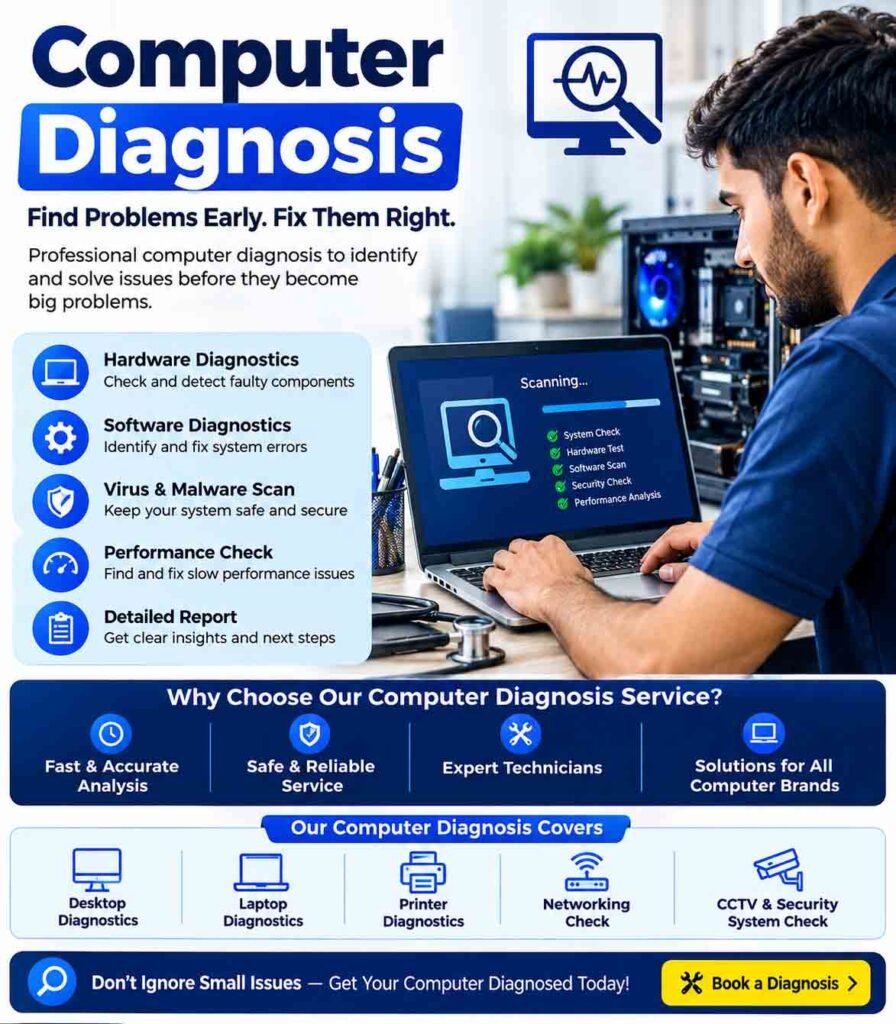
Laptop diagnostics is the process of identifying problems affecting a laptop’s hardware, software, performance, or power system. A structured diagnostic approach can help determine whether a problem is caused by the battery, storage drive, memory, display, cooling system, operating system, or another component.
Start With Basic Laptop Diagnostics
Before performing advanced checks, begin with simple observations. Note exactly what the laptop is doing and when the problem occurs.
Common symptoms include:
- Laptop not turning on
- Slow startup or poor performance
- Random freezing or restarting
- Overheating
- Battery draining quickly
- Screen flickering or remaining black
- Keyboard or touchpad problems
- Wi-Fi or Bluetooth connectivity issues
- Unusual fan or hard-drive noises
Restarting the laptop can resolve temporary software problems. If the same issue repeatedly returns, further testing is necessary.
Check the Power System
Power-related problems are common in laptops. Check the charger, charging port, power indicator, and battery status.
If the laptop works only when connected to the charger, the battery may be degraded or faulty. If it does not power on at all, the charger, charging connector, battery, or internal power circuitry could be responsible.
Do not continue using a charger or battery that is visibly damaged, excessively hot, swollen, or producing an unusual smell.
Check Battery Health
Laptop batteries naturally lose capacity over time. A battery-health diagnostic can show whether its current capacity has significantly decreased compared with its original design capacity.
Rapid battery drain can also be caused by high processor usage, excessive background applications, high screen brightness, poor battery condition, or demanding software.
Check RAM and Storage
Faulty or insufficient RAM can result in application crashes, freezing, slow performance, and unexpected system errors. Built-in memory diagnostic tools can help identify memory problems.
The storage drive should also be checked. A nearly full or failing SSD or HDD can cause slow startup, file errors, application failures, and operating-system problems.
Always back up important files if there are signs that the storage device may be failing.
Inspect the Cooling System
Laptops have limited space for airflow, making cooling particularly important. Dust buildup around vents and fans can restrict airflow and cause overheating.
Signs of a cooling problem include:
- Loud or constantly running fans
- Excessive heat
- Sudden shutdowns
- Performance slowing during demanding tasks
- System crashes under load
Keep ventilation openings unobstructed and clean accessible vents carefully.
Test the Display
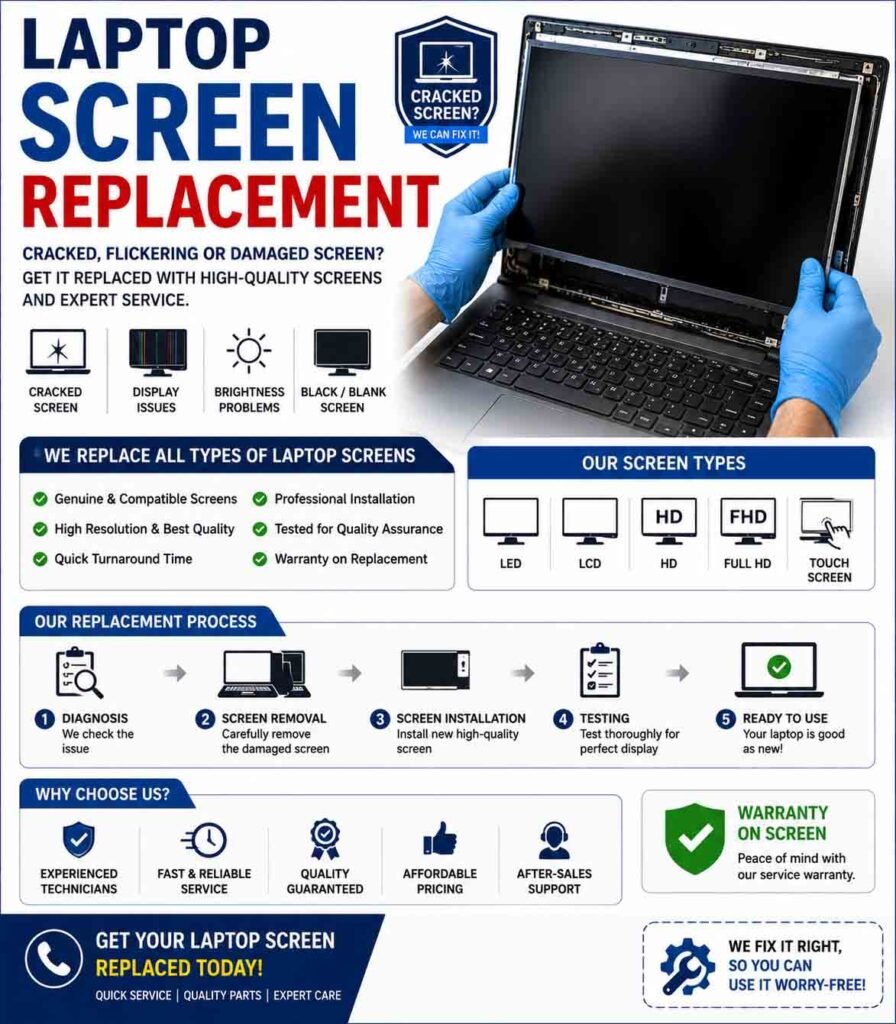
If the screen is flickering, dim, distorted, or completely blank, determine whether the problem occurs during startup or only after the operating system loads.
Check the display brightness and graphics settings first. If possible, connecting an external monitor can help distinguish between a laptop display problem and a graphics or software problem.
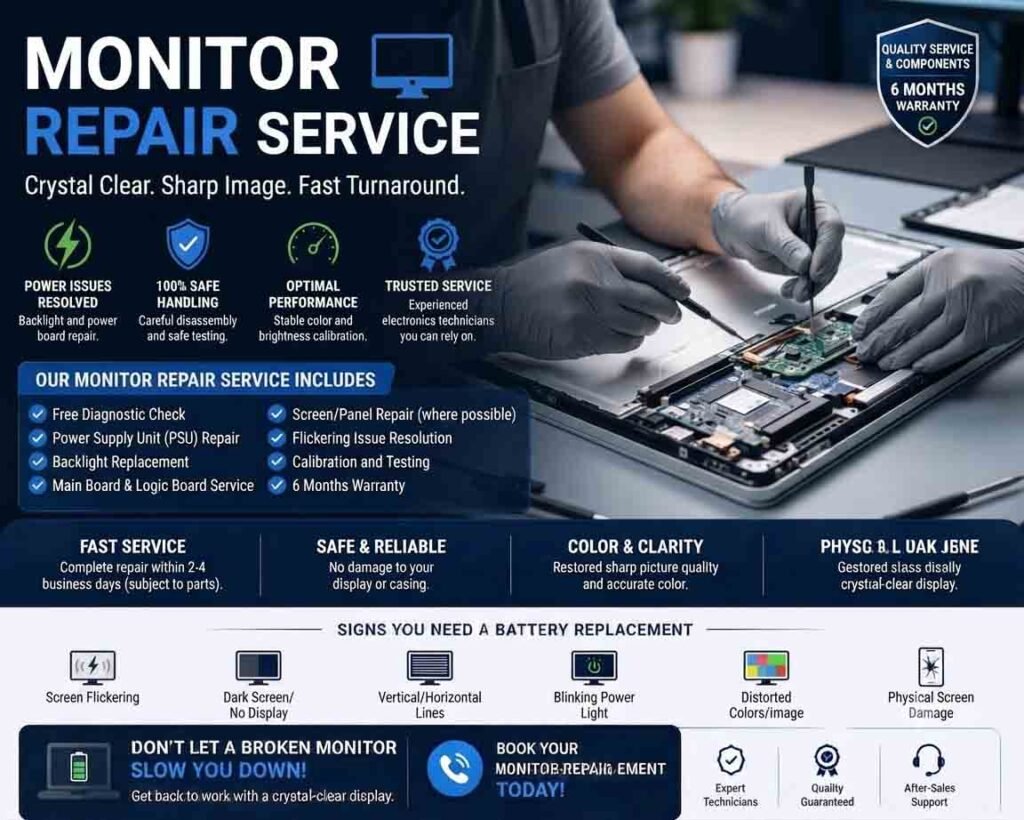
Physical damage, loose internal display connections, or a failing display panel may require professional repair.
Check Keyboard, Touchpad, and Ports
Test individual keyboard keys and the touchpad. Also check USB ports, audio connections, memory-card slots, and other available interfaces.
If one port does not work, test another compatible port with a known-working device. This helps determine whether the issue is with the peripheral or the laptop itself.
Check Wi-Fi and Bluetooth
Connectivity problems can originate from software settings, drivers, the wireless adapter, or the network itself.
Restart the wireless connection and verify that the laptop can detect other networks or Bluetooth devices. If other devices connect successfully to the same network but the laptop does not, further laptop-side diagnostics may be appropriate.
Run Manufacturer Diagnostic Tools
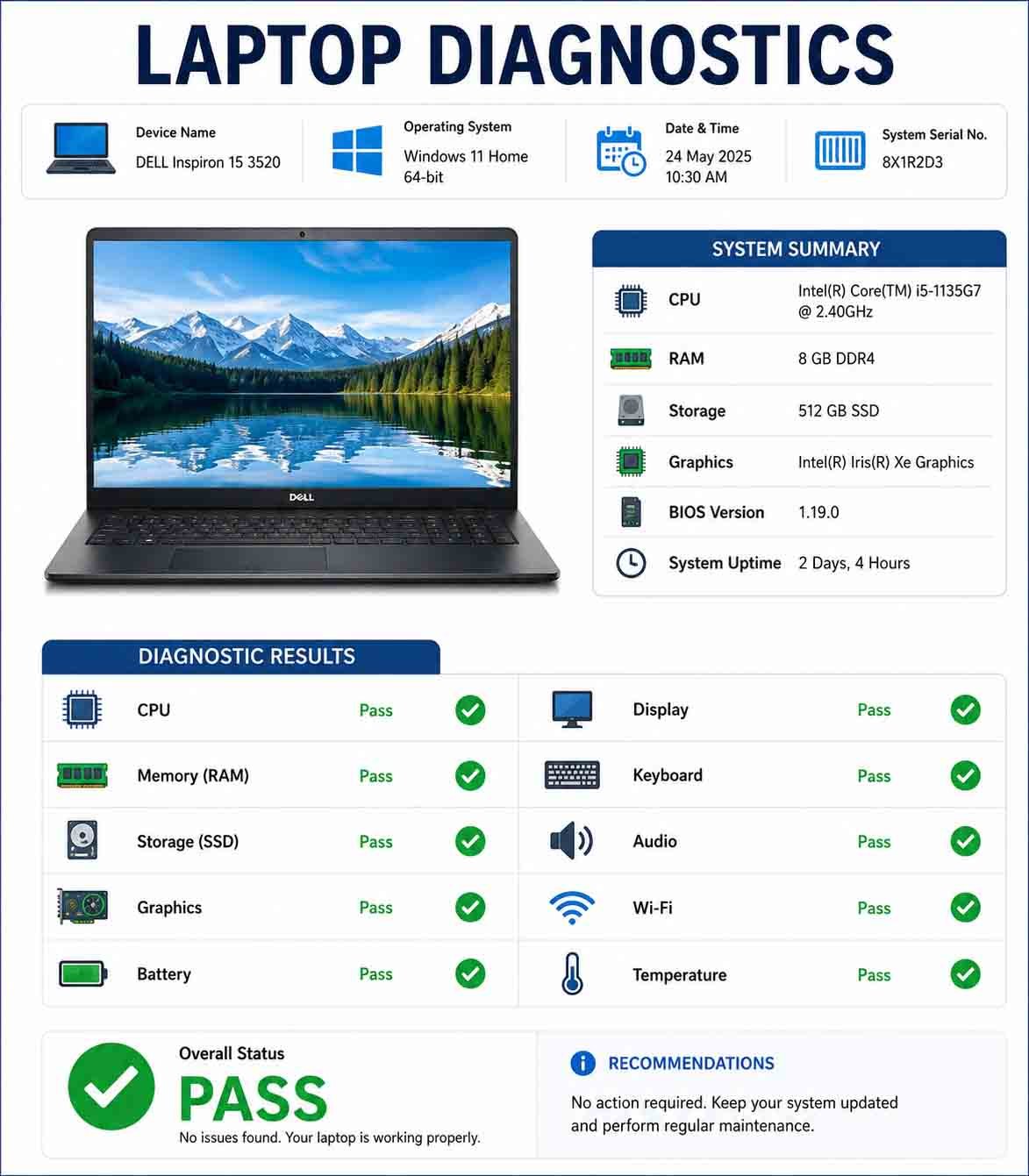
Many laptop manufacturers provide built-in or downloadable diagnostic utilities. These tools can test components such as memory, storage, processor, battery, display, fans, and other hardware.
When a diagnostic tool reports an error code, record it before attempting repairs. The code can help identify the affected component and provide useful information to a technician.
When Professional Inspection Is Needed
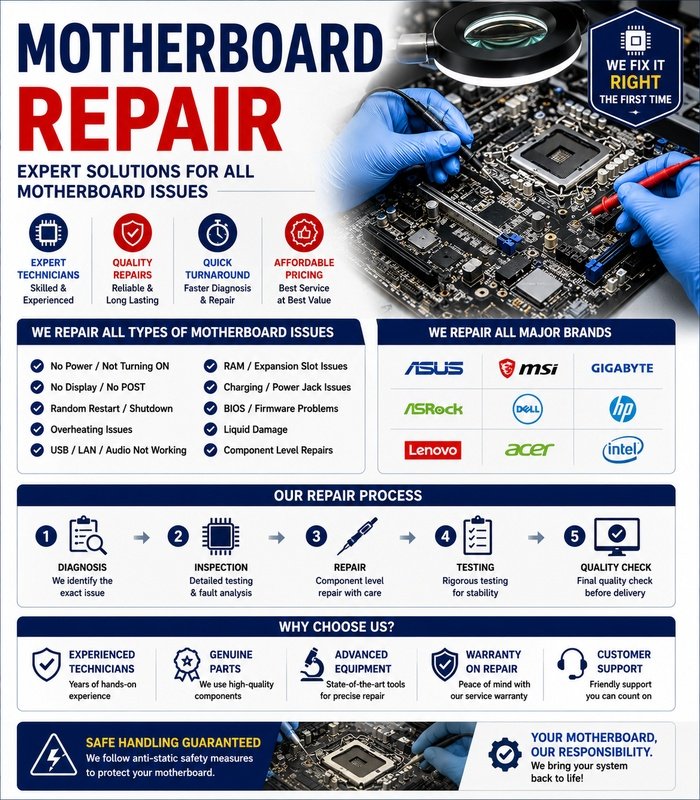
Professional assistance may be appropriate when a laptop has liquid damage, a swollen battery, repeated motherboard failures, burning smells, severe overheating, or physical damage.
Avoid opening components that contain potentially hazardous batteries or attempting repairs without the appropriate tools and knowledge.
A good laptop diagnostic process starts with the simplest checks and gradually moves toward more specific hardware testing. By identifying the symptoms carefully and testing one component at a time, many laptop problems can be diagnosed more efficiently and repaired without unnecessary part replacement.




Reviews
There are no reviews yet.