Computer Diagnosis: A Practical Guide to Basic Diagnostics and Hardware Checking
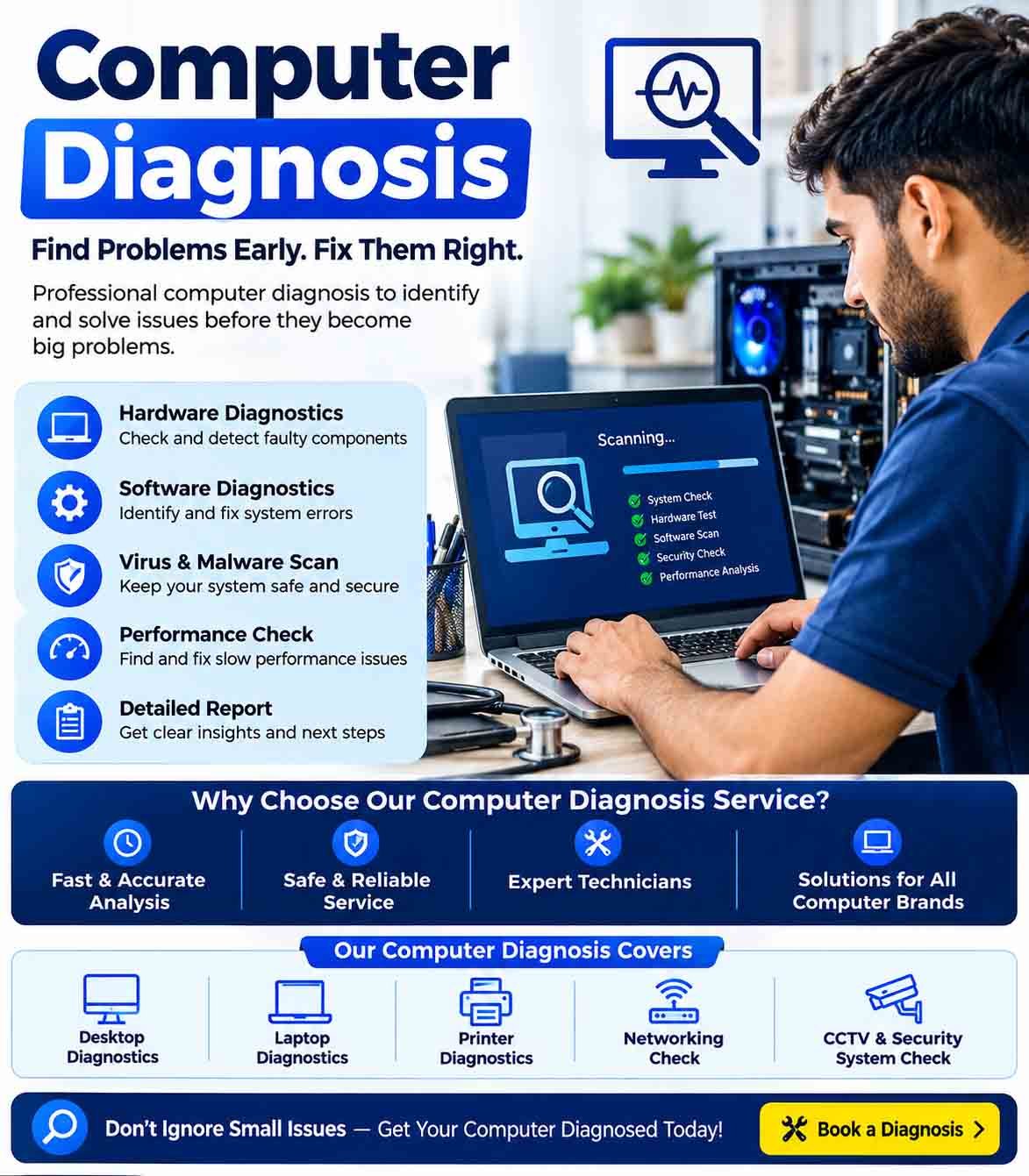
When a computer starts running slowly, freezing unexpectedly, restarting without warning, or refusing to turn on, the first step is to identify what is actually causing the problem. Computer diagnosis is the process of checking a computer systematically to find faults in its hardware, software, or configuration.
A proper diagnosis can prevent unnecessary repairs and help determine whether a problem can be fixed at home or requires professional attention. With a few basic diagnostic techniques, users can identify many common computer problems before replacing expensive components.
What Is Computer Diagnosis?
Computer diagnosis involves examining the different parts of a computer and testing their operation to locate the source of a problem. This may include checking the operating system, storage drive, memory, processor, power supply, cooling system, display, keyboard, network connection, and other components.
The goal is not simply to notice that a computer is malfunctioning. The goal is to determine why it is malfunctioning.
For example, a computer that is unusually slow could have insufficient memory, a nearly full storage drive, excessive background applications, malware, overheating, or a failing storage device. A structured diagnostic process helps narrow down these possibilities.
Start With Basic Diagnostics
Before opening the computer or replacing hardware, perform some simple checks.
1. Restart the Computer
A restart can resolve temporary software errors, stalled processes, memory issues, and background-service problems. If the problem disappears after restarting but returns later, this can provide an important clue.
2. Check for Error Messages
Pay attention to error messages, warning notifications, blue screens, application crashes, or unusual sounds. Write down the exact message whenever possible. Searching for the specific error code later can make troubleshooting much easier.
3. Check Available Storage
A drive that is almost full can cause poor performance and prevent applications or system updates from working correctly. Remove unnecessary files and check whether the computer becomes more responsive.
4. Monitor System Performance
Windows and other operating systems provide tools for monitoring processor usage, memory consumption, storage activity, and running applications. If one program consistently consumes an unusually large amount of system resources, it may be responsible for the slowdown.
5. Check for Overheating
Excessive heat can cause performance problems, unexpected shutdowns, freezes, and hardware damage. Make sure air vents are not blocked and that cooling fans are working properly.
Hardware Checking
When software-based checks do not explain the problem, the next step is hardware checking. Hardware diagnostics involve testing individual physical components to determine whether one of them is defective or failing.
Memory (RAM)
Faulty RAM can cause random crashes, application errors, freezes, and startup problems. Memory diagnostic utilities can test installed RAM for errors.
If a computer has multiple memory modules, testing them individually can sometimes help identify a defective module.
Storage Drive
A failing HDD or SSD can produce slow performance, corrupted files, system crashes, and startup failures. Diagnostic utilities can check drive health and report certain errors.
Important files should always be backed up before performing extensive troubleshooting on a drive that may be failing.
Processor
The processor is normally reliable, but overheating or unstable operating conditions can lead to crashes and shutdowns. Processor temperature and system stability can be monitored with appropriate diagnostic tools.
Power Supply
A faulty or insufficient power supply can cause random restarts, shutdowns, failure to start, or instability when the computer is under heavy load.
Power-related problems can be difficult to diagnose without suitable equipment, so persistent symptoms may require professional testing.
Cooling System
Fans, heatsinks, and ventilation are essential for keeping computer components within safe operating temperatures. Dust buildup can restrict airflow and reduce cooling efficiency.
Cleaning accessible vents and ensuring that fans operate correctly can resolve some overheating-related problems.
Display and Graphics Hardware
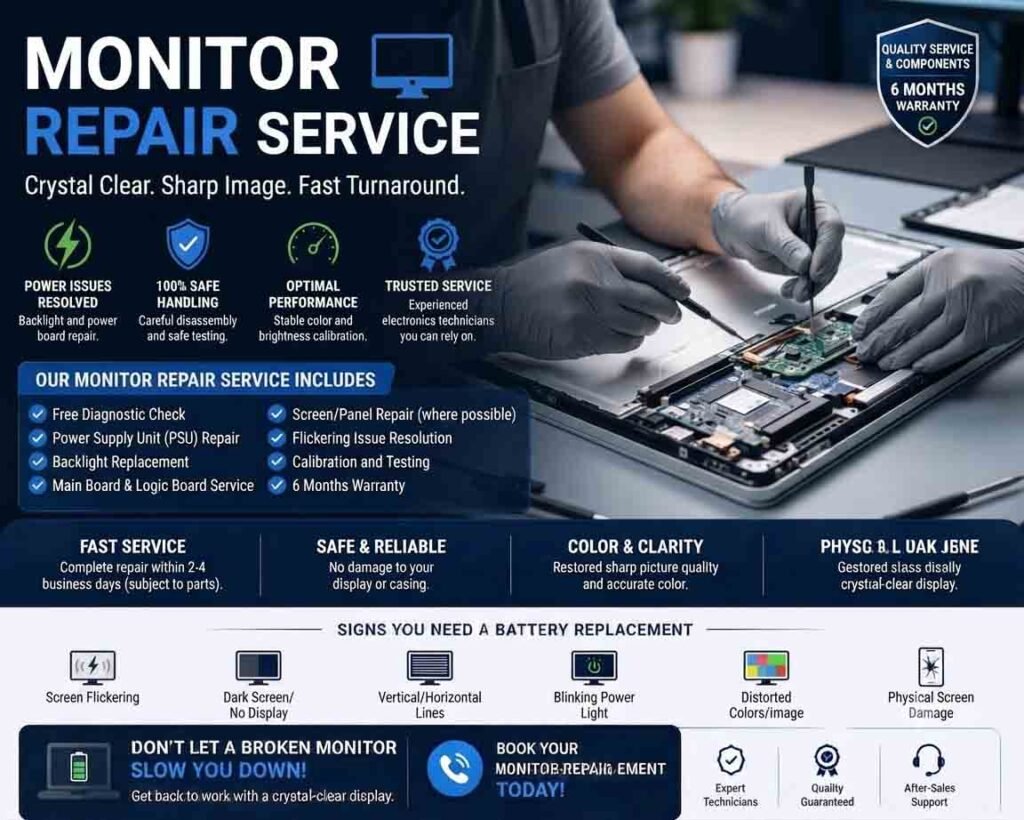
Screen flickering, graphical artifacts, black screens, and display crashes may be related to the monitor, cable, graphics processor, or graphics driver.
Testing the computer with another display or cable can help determine whether the problem originates from the computer or the display equipment.
Identifying a Faulty Device
Faulty device diagnostics becomes easier when symptoms are isolated systematically. Instead of replacing several components at once, test one suspected component at a time.
For example, if a computer suddenly shuts down during demanding tasks, check temperatures first. If temperatures are normal, investigate the power supply and other possible causes. If the computer fails to recognize a storage drive, check the connection, BIOS/UEFI detection, cables, and drive health before assuming the drive has completely failed.
This method reduces unnecessary component replacement and makes the actual cause easier to identify.
Software and Hardware Problems Can Look Similar
One of the biggest challenges in computer troubleshooting is that software and hardware faults can produce similar symptoms.
A slow computer may have a failing drive, but it could also simply have too many startup applications. A system that crashes may have defective RAM, but an incompatible driver can create similar behavior.
For this reason, diagnosis should normally begin with simple and low-risk checks before moving to more advanced hardware testing.
When Professional Diagnostics Are Needed
Some problems should be handled by a qualified technician. These include suspected motherboard damage, power-supply faults, liquid damage, burning smells, repeated electrical failures, or components that require specialized testing equipment.
Avoid opening power supplies or attempting repairs involving high-voltage components unless you have the appropriate training and equipment.
A Systematic Approach Saves Time
Effective computer diagnosis is less about guessing and more about following a logical process. Start with the symptoms, record any error messages, perform basic diagnostics, monitor system behavior, and then test individual hardware components when necessary.
By separating software problems from hardware problems and checking components one at a time, many common computer faults can be identified more quickly. Good diagnostic habits can also prevent unnecessary expenses and help keep a computer reliable for longer.







Reviews
There are no reviews yet.