Monitor Repair
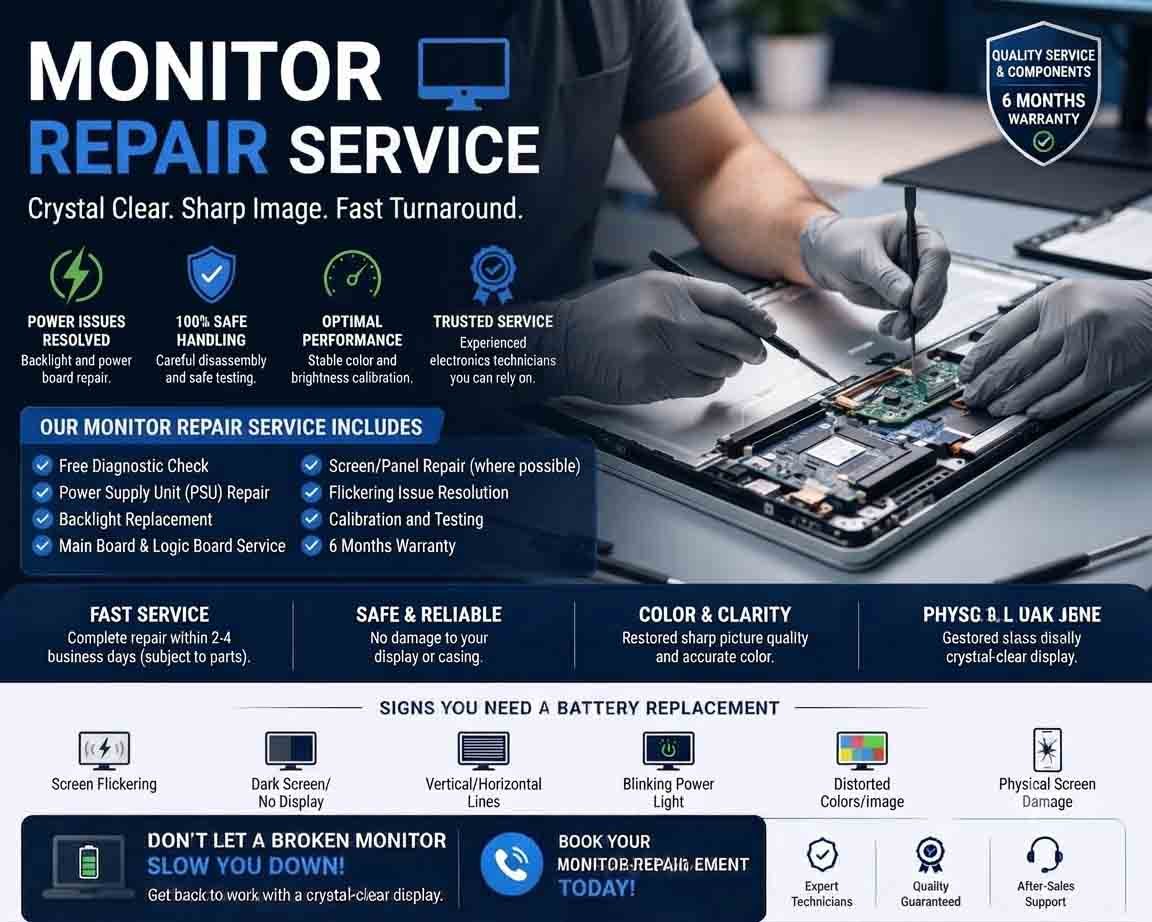
Monitor repair involves diagnosing and resolving problems that affect a computer display, including power failures, blank screens, flickering, image distortion, damaged ports, and poor display quality. Accurate diagnosis helps determine whether the issue is with the monitor itself, its cable, the computer, or another connected component.
Common Monitor Problems
A monitor may develop different symptoms depending on the type of fault. Common problems include:
- Monitor not turning on
- No display or “No Signal” message
- Flickering screen
- Horizontal or vertical lines
- Dead or stuck pixels
- Dim or uneven brightness
- Incorrect colors
- Screen going black intermittently
- Damaged HDMI, DisplayPort, VGA, or other ports
- Power indicator working but no image
- Unusual sounds or burning smell
The same symptom can have several possible causes, so testing should be performed systematically.
Basic Monitor Diagnostics
Start by checking the power cable, power outlet, monitor power button, and indicator light.
If the monitor has an external power adapter, inspect the adapter and cable for visible damage.
Next, check the video cable connecting the monitor to the computer. Make sure the cable is firmly connected at both ends and that the monitor is set to the correct input source.
No Signal Troubleshooting
A “No Signal” message does not necessarily mean the monitor is faulty.
Check whether the computer is operating correctly and whether the selected display output is correct.
Try:
- Reseating the video cable
- Testing another compatible cable
- Selecting another input
- Connecting the monitor to another computer
- Testing another monitor with the same computer
These checks can help determine whether the problem originates from the monitor or the computer.
Screen Flickering
Flickering can be caused by a damaged cable, incorrect refresh rate, graphics driver problems, power issues, or an internal monitor fault.
Test the monitor with another cable and another computer when possible. Check the display settings and confirm that the selected resolution and refresh rate are supported by the monitor.
Persistent flickering after these checks may require professional inspection.
Lines and Display Distortion
Horizontal or vertical lines may indicate a damaged panel, display electronics, cable connection, or graphics output.
If the lines appear even when the monitor’s own menu is displayed, the problem is more likely to be inside the monitor.
Physical impact can permanently damage the display panel, and panel replacement may not always be economically practical.
Brightness and Backlight Problems
A monitor that powers on but appears extremely dark may have a backlight, power, or display-control problem.
LED monitors use internal lighting components that can fail over time. Professional diagnosis can determine whether the fault is repairable or whether replacing the display assembly is more practical.
Dead and Stuck Pixels
Individual dead or stuck pixels may occur because of panel defects or physical damage.
A small number of defective pixels may be covered differently depending on the manufacturer’s warranty policy. Check the manufacturer’s pixel policy before paying for a repair or replacement.
Monitor Port Repair
HDMI, DisplayPort, VGA, USB, and other connectors can become loose or damaged through repeated use.
If a port works only when the cable is held in a particular position, the connector may require inspection or replacement.
Do not force cables into damaged ports.
Power Problems
If the monitor does not power on, inspect the external power source and adapter first.
If the power supply is functioning but the monitor remains completely inactive, the internal power circuit may require professional diagnosis.
Internal monitor power supplies can contain components that retain dangerous electrical energy even after the monitor has been disconnected from mains power.
Product Highlight
A high-quality monitor cable, such as a compatible HDMI or DisplayPort cable, can be a useful first replacement when diagnosing intermittent display problems. A suitable cable can help eliminate connection faults before more expensive monitor repairs are considered. Customers should select a cable that supports their monitor’s resolution and refresh-rate requirements. If the issue remains with a known-good cable and another computer, the monitor itself may require professional diagnosis.
When Professional Monitor Repair Is Needed
Professional repair may be appropriate for internal power faults, damaged ports, backlight problems, control-board failures, or other internal electronic issues.
A physically cracked LCD or LED panel is often difficult to repair economically because the display panel itself may need replacement.
Testing After Repair
After servicing, test the monitor with a suitable computer or test device.
Check:
- Power operation
- Display output
- Brightness
- Color accuracy
- Resolution
- Refresh rate
- Input switching
- All relevant ports
- Flickering or image stability
For monitors with built-in speakers, USB hubs, webcams, or other features, test those functions as well.
Keeping Your Monitor Reliable
Keep the monitor in a clean, dry environment and provide adequate ventilation. Avoid pressing the screen, striking the panel, or repeatedly forcing connectors.
Proper monitor repair begins with identifying whether the problem comes from the monitor, cable, computer, or power source. Systematic testing can prevent unnecessary repairs and help determine whether servicing or replacement is the better option.









Reviews
There are no reviews yet.