Slow Desktop Fixing
A slow desktop computer can affect work, browsing, gaming, and everyday tasks. Slow desktop fixing involves identifying the actual cause of reduced performance and applying the right solution, whether that means software cleanup, hardware maintenance, or a component upgrade.
Common Causes of a Slow Desktop
A desktop may become slow because of:
- Insufficient RAM
- Aging HDD
- Nearly full storage
- Too many startup programs
- Excessive background processes
- Outdated drivers
- Malware or unwanted software
- Overheating
- Failing hardware
- Outdated components
Identifying the bottleneck first helps avoid unnecessary upgrades.
Check CPU, RAM, and Storage Usage
Start by monitoring CPU, memory, and storage activity while the computer is being used normally.
High CPU usage may indicate a demanding application or unnecessary background process. Consistently high memory usage can indicate insufficient RAM.
If the storage drive remains heavily utilized or performs slowly, the drive itself may be contributing to the problem.
Clean Up Storage
A drive with very little free space can affect system operation and make it difficult to install updates or applications.
Remove unnecessary temporary files, unused applications, and unwanted data. Important documents should be backed up before major cleanup.
For systems with multiple drives, storing large files on an appropriate secondary drive can also help manage available space.
Upgrade From HDD to SSD
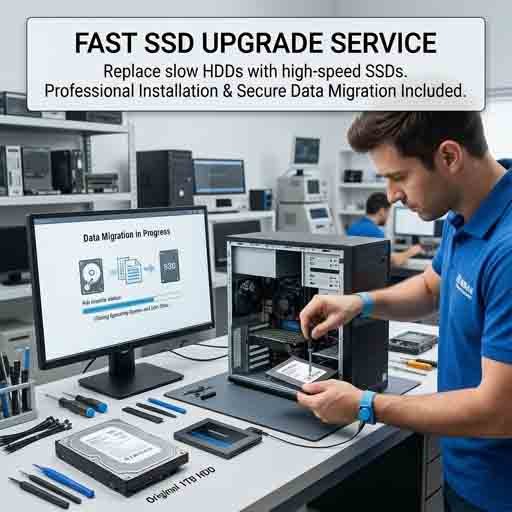
One of the most effective upgrades for an older desktop is replacing the operating-system HDD with a compatible SSD.
An SSD can provide considerably faster boot times, quicker application loading, and more responsive file access.
Before upgrading, verify the available SATA or M.2 interface and ensure that important data is backed up.
Increase RAM
If the desktop frequently uses most of its available memory, adding compatible RAM can improve multitasking and application performance.
Check the motherboard’s supported memory type, maximum capacity, number of slots, and supported speeds before purchasing new modules.
Manage Startup Applications
Programs that automatically launch when Windows starts can increase boot time and consume memory and processor resources.
Review startup applications and disable unnecessary programs. Do not disable essential system processes without confirming their purpose.
Check for Malware and Unwanted Software
Malware and unwanted applications can consume system resources and cause instability.
Run a trusted security scan and remove software that is unnecessary or suspicious. Avoid installing questionable “PC booster” applications that may create additional problems.
Check Cooling and Dust
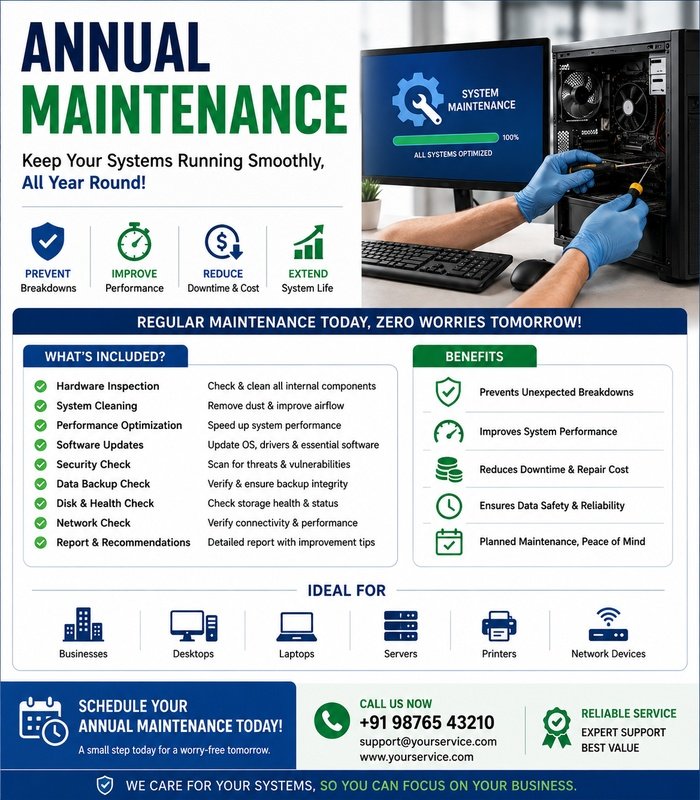
Desktop computers can accumulate dust around fans, heatsinks, filters, and ventilation areas. Restricted airflow can increase temperatures and cause performance throttling.
Inspect the cooling system and clean accessible areas safely. Check that CPU and case fans are operating correctly.
If the computer becomes extremely hot or shuts down under load, further thermal inspection may be required.
Check the Hard Drive or SSD
A storage device that is beginning to fail can cause slow file access, freezing, crashes, and unusual system behavior.
Check available health information and back up important data if the drive shows warning signs. A failing drive should be replaced rather than repeatedly stressed through unnecessary troubleshooting.
Update Software and Drivers
Outdated operating-system components or hardware drivers can sometimes contribute to poor performance and instability.
Install appropriate updates from trusted sources and avoid unofficial driver packages.
Product Highlight
For customers looking to improve an older desktop, a compatible SSD can be an effective performance upgrade. It can reduce system startup times and make applications and files load more quickly than a traditional hard drive. Customers should check the desktop’s motherboard interface and available drive bays before purchasing. Selecting a reliable SSD with suitable capacity can provide a practical way to extend the life of an existing computer.
When Professional Diagnostics Are Needed
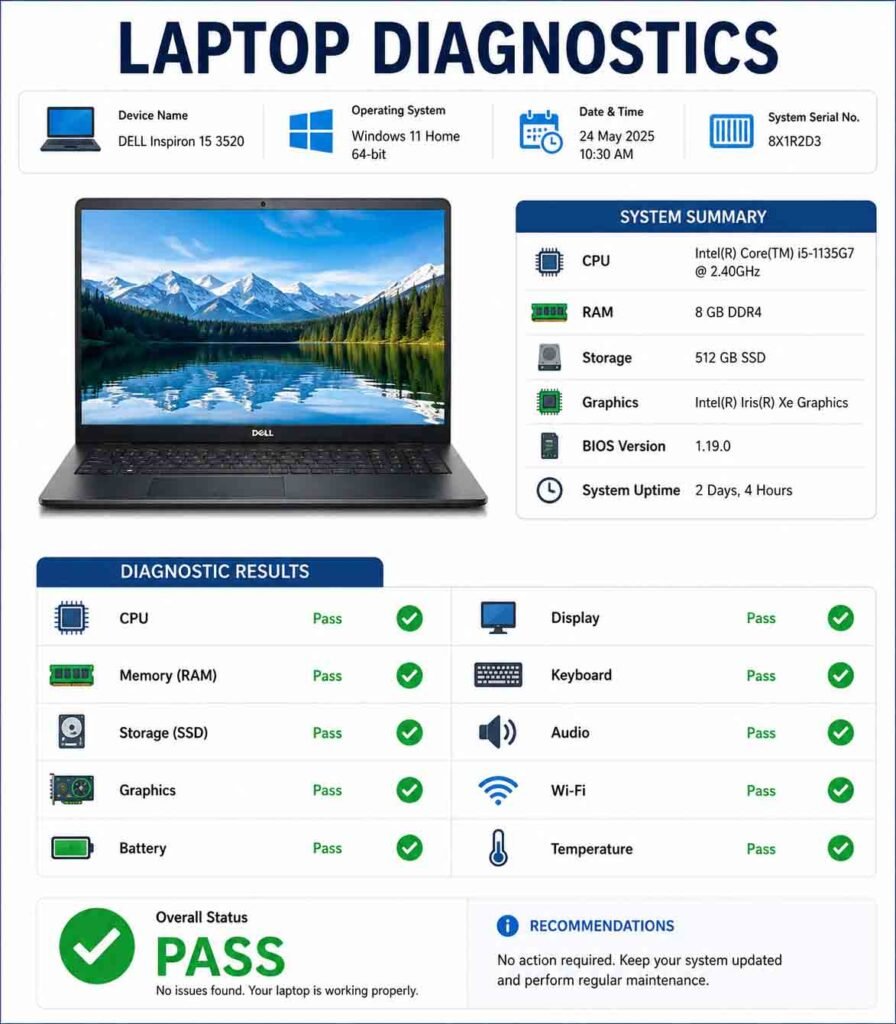
If the desktop remains slow after basic optimization, the cause may be failing hardware, insufficient processing power, overheating, memory problems, or another component fault.
Professional diagnostics can identify the actual problem and determine whether upgrading, repairing, or replacing a component is the most cost-effective solution.
Restoring Desktop Performance
Effective slow desktop fixing is based on identifying the bottleneck rather than applying unnecessary changes. Checking storage, RAM, processor usage, cooling, software, and hardware health can reveal why a desktop has become slow.
With proper maintenance and carefully selected upgrades, many older desktops can achieve noticeably better performance and continue serving reliably for years.








Reviews
There are no reviews yet.