Slow Laptop Fixing
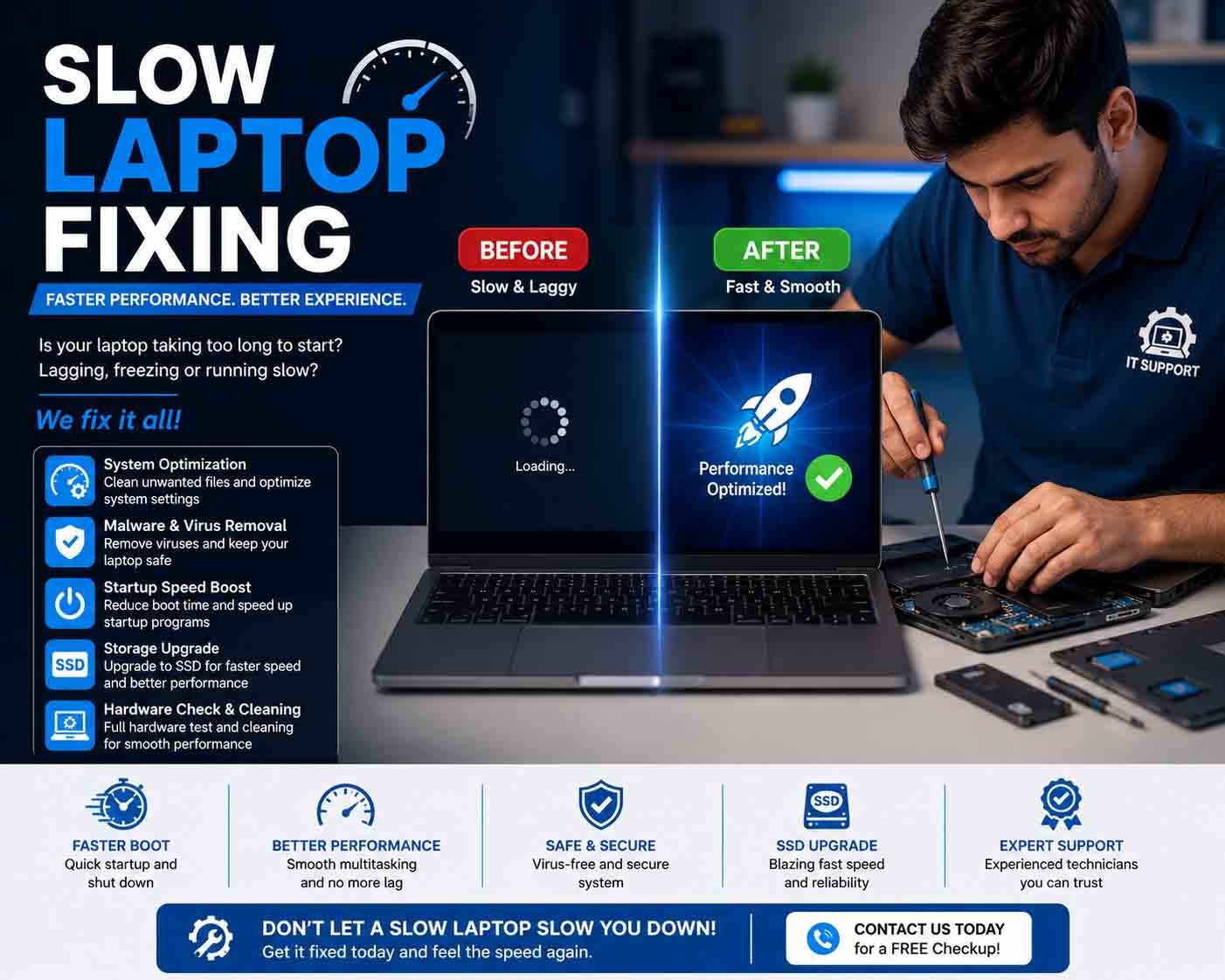
A slow laptop can make everyday tasks frustrating, especially when applications take a long time to open, the system takes too long to start, or programs become unresponsive. Slow laptop fixing involves identifying the reason for reduced performance and applying the appropriate solution instead of simply replacing the device.
Common Causes of a Slow Laptop
Laptop performance can decline for several reasons. Common causes include:
- Insufficient RAM
- Nearly full storage
- Aging HDD
- Too many startup applications
- Unnecessary background processes
- Outdated drivers
- Excessive temporary files
- Malware or unwanted software
- Overheating
- Battery or power-management limitations
The first step is to identify which of these factors is actually affecting the laptop.
Check System Performance
Use the operating system’s performance-monitoring tools to check processor, memory, storage, and network usage.
If memory usage remains high when only a few applications are open, the laptop may need additional RAM or better application management.
If storage usage remains at or near maximum capacity, freeing space may improve system responsiveness.
Remove Unnecessary Startup Programs
Many applications automatically start when the laptop boots. A large number of startup programs can increase boot time and consume memory in the background.
Review startup applications and disable programs that are not required to launch automatically. Essential system services should not be disabled without understanding their purpose.
Free Up Storage Space
A nearly full storage drive can contribute to poor system performance and make updates or applications difficult to run.
Remove unnecessary temporary files, unused applications, and other files that are no longer required. Important personal data should be backed up before performing major cleanup.
Upgrade From HDD to SSD
For laptops that still use a traditional hard disk drive, replacing the HDD with a compatible SSD can provide a significant improvement in startup and application-loading performance.
An SSD upgrade can be particularly useful for older laptops that otherwise remain suitable for everyday use.
Before upgrading, verify the laptop’s supported storage interface and create a complete backup.
Upgrade RAM
If the laptop frequently runs out of available memory during multitasking, a RAM upgrade may improve performance.
Check the laptop’s maximum supported memory and determine whether the existing RAM is upgradeable. Some newer laptops have memory soldered directly to the motherboard.
Check for Overheating
Heat can cause a laptop processor to reduce its operating speed to protect the hardware. This can make the computer noticeably slower during demanding tasks.
Check the ventilation openings and cooling fans for dust or obstruction. If the laptop becomes unusually hot or the fan constantly runs at high speed, professional cleaning or thermal servicing may be necessary.
Check Software and Malware
Unwanted applications, excessive background processes, and malware can consume system resources.
Review installed applications and remove software that is no longer required. Keep the operating system and security software appropriately updated.
Avoid installing unknown optimization tools that promise unrealistic performance improvements.
Update Drivers and Operating System
Outdated or incompatible drivers can sometimes contribute to performance or stability problems. Check for appropriate updates for the operating system and major hardware components.
Updates should be obtained from trusted sources and installed according to the laptop manufacturer’s recommendations.
Product Highlight
For customers considering a performance upgrade, a compatible SSD can be a practical product choice for improving an older laptop. An SSD can provide faster boot times, quicker application loading, and more responsive file access than a traditional hard drive. When selecting one, customers should check the laptop’s supported interface, physical size, and storage requirements. Choosing a reliable, compatible model can make the upgrade more effective and extend the useful life of the laptop.
When Professional Help Is Needed
If the laptop remains slow after software cleanup and basic maintenance, the problem may involve failing storage, insufficient hardware, overheating, memory faults, or another component.
Professional diagnostics can identify the actual bottleneck and determine whether repair, hardware upgrading, or replacement is the most practical option.
Improving Laptop Performance
Effective slow laptop fixing starts with diagnosis rather than guesswork. Checking resource usage, storage health, startup programs, cooling, software, RAM, and hardware condition can reveal the cause of poor performance.
With the right combination of maintenance and compatible hardware upgrades, many slow laptops can regain useful performance without requiring complete replacement.









Reviews
There are no reviews yet.