Hardware Upgrade
Hardware upgrade is the process of improving a computer, laptop, or other device by replacing or adding compatible components. Upgrading the right hardware can improve performance, increase storage capacity, extend the useful life of a device, and reduce the need for complete replacement.
When Is a Hardware Upgrade Needed?
An upgrade may be useful when a computer becomes slow, runs out of storage, struggles with demanding applications, or cannot handle newer software efficiently.
Common reasons for upgrading include:
- Slow application performance
- Insufficient RAM
- Limited storage capacity
- Slow startup times
- Poor graphics performance
- Increasing workload requirements
- Need for additional connectivity
- Extending the life of an older computer
Before purchasing components, it is important to identify the actual performance limitation.
RAM Upgrade
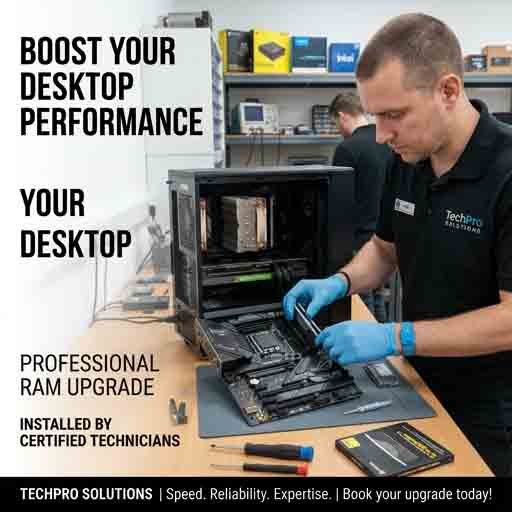
Adding or replacing RAM can improve multitasking and system responsiveness when the existing memory is insufficient.
Before upgrading, check the motherboard or laptop specifications for supported memory type, capacity, speed, and maximum supported RAM.
Installing incompatible memory may prevent the computer from starting correctly, so compatibility should always be verified first.
Storage Upgrade
Replacing an older hard disk drive with a compatible SSD can significantly improve startup times, application loading, and overall system responsiveness.
An additional or larger SSD can also provide more space for applications and files.
Before replacing a storage device, important data should be backed up and the operating system or existing data should be transferred using an appropriate migration method.
Graphics Upgrade
Desktop computers may support graphics-card upgrades for gaming, video editing, 3D applications, and other demanding workloads.
When selecting a graphics card, consider:
- Motherboard compatibility
- Power-supply capacity
- Available physical space
- Cooling requirements
- Monitor connections
- Software requirements
A more powerful graphics card may require a stronger power supply and improved cooling.
Processor Upgrade
A processor upgrade can provide additional computing performance, but compatibility is particularly important.
Check the motherboard socket, supported processor models, BIOS/UEFI compatibility, cooling requirements, and power requirements before purchasing a new processor.
For many laptops, the processor is soldered to the motherboard and cannot be practically upgraded.
Laptop Hardware Upgrades
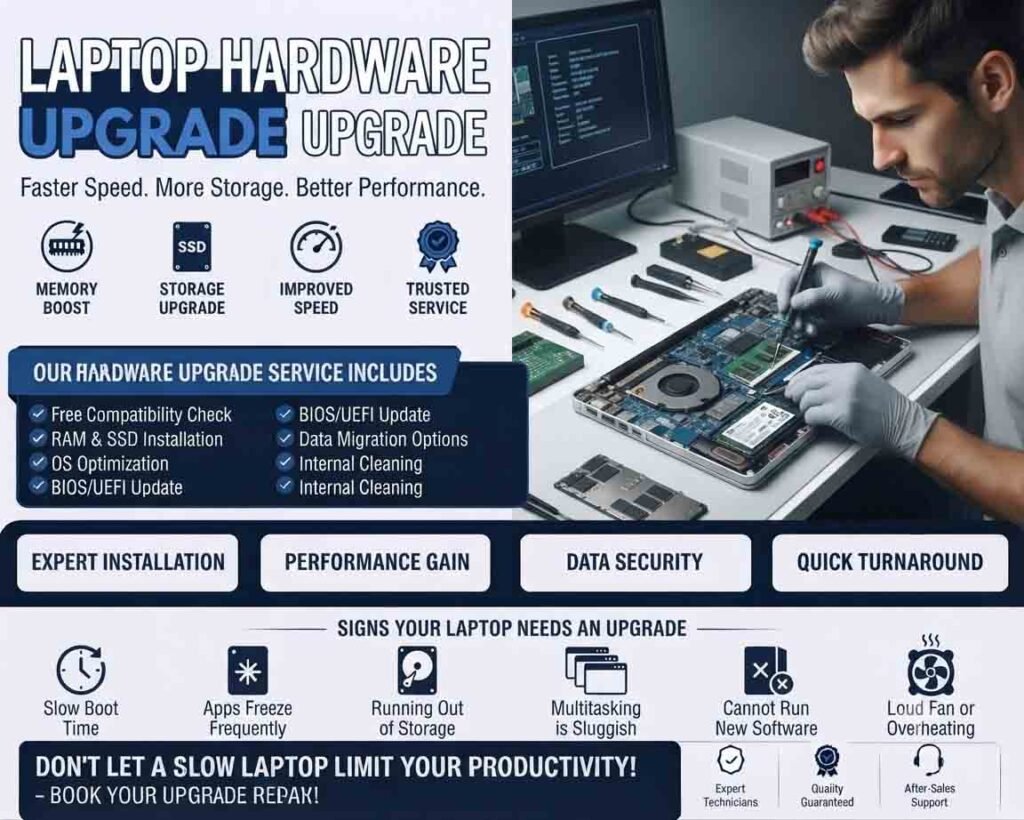
Laptop upgrade options depend heavily on the model. Some laptops allow RAM or SSD upgrades, while others have components that are permanently soldered to the motherboard.
Before opening a laptop, verify the manufacturer’s specifications and service information.
Battery replacement may also be considered when an older battery has significantly reduced capacity, provided a compatible replacement is available.
Cooling Improvements
Higher-performance components can produce more heat. Desktop users may benefit from improved case airflow, additional fans, or a better CPU cooler when appropriate.
Cooling components should be compatible with the case, motherboard, processor, and available mounting space.
Checking Compatibility
Compatibility is one of the most important parts of a hardware upgrade. Check:
- Motherboard specifications
- Supported RAM
- Storage interfaces
- Processor socket
- Power-supply capacity
- Physical dimensions
- Available expansion slots
- Operating-system requirements
A component that appears suitable may still be incompatible with the existing system.
Back Up Before Upgrading
Always back up important files before making significant hardware changes. Although an upgrade does not normally affect stored data, unexpected problems can occur during installation, system migration, or operating-system configuration.
For storage upgrades, create a reliable backup before removing or modifying the original drive.
Testing After an Upgrade
After installing new hardware, verify that the operating system recognizes the component correctly.
Check system performance, temperatures, storage health, device drivers, and overall stability. Run appropriate diagnostic tests if necessary.
If the computer does not start after an upgrade, recheck component seating, power connections, compatibility, and system configuration.
Choosing the Right Upgrade
The best hardware upgrade is not necessarily the most expensive one. Identifying the actual bottleneck first helps avoid spending money on components that provide little practical improvement.
A well-planned upgrade can improve performance, increase capacity, and extend the useful life of a computer while costing significantly less than replacing the entire system.








Reviews
There are no reviews yet.