Laptop Hardware Upgrade
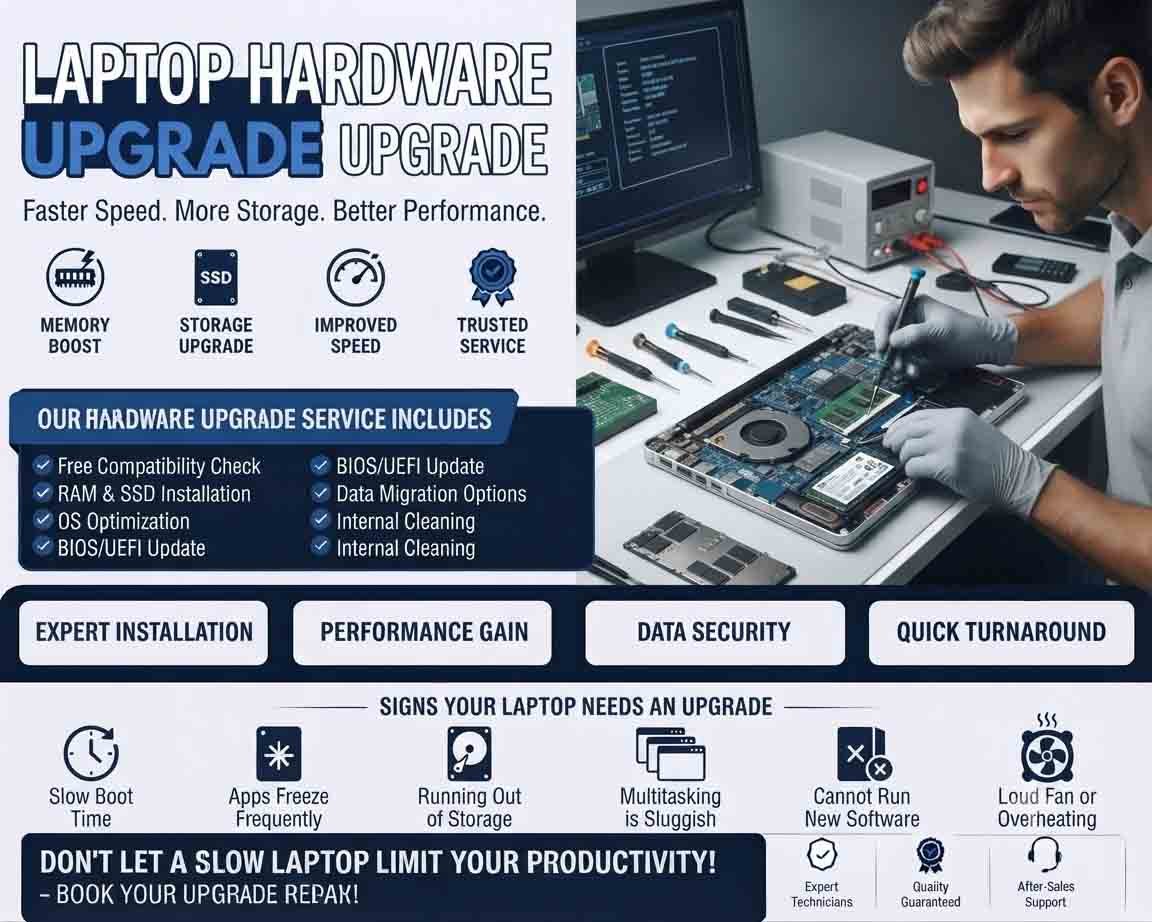
A laptop hardware upgrade can improve performance, increase storage capacity, and extend the useful life of an existing laptop. Unlike desktop computers, laptops have limited upgrade options, so compatibility should be checked carefully before purchasing or installing any component.
When Should You Upgrade a Laptop?
A laptop may benefit from an upgrade when it has become slow, frequently runs out of storage, struggles with multitasking, or needs additional capacity for applications and files.
Common reasons include:
- Slow application loading
- Limited RAM
- Insufficient storage
- Slow hard-drive performance
- Reduced battery capacity
- Increasing software requirements
- Need for better overall responsiveness
Before upgrading, identify the actual limitation rather than replacing components unnecessarily.
RAM Upgrade
Increasing RAM can improve multitasking and overall responsiveness when the existing memory is insufficient.
Before purchasing RAM, check the laptop’s supported memory type, maximum capacity, speed, and number of available slots. Some modern laptops have RAM soldered directly to the motherboard, making a memory upgrade impossible.
Compatible memory should always be used according to the laptop manufacturer’s specifications.
SSD Upgrade
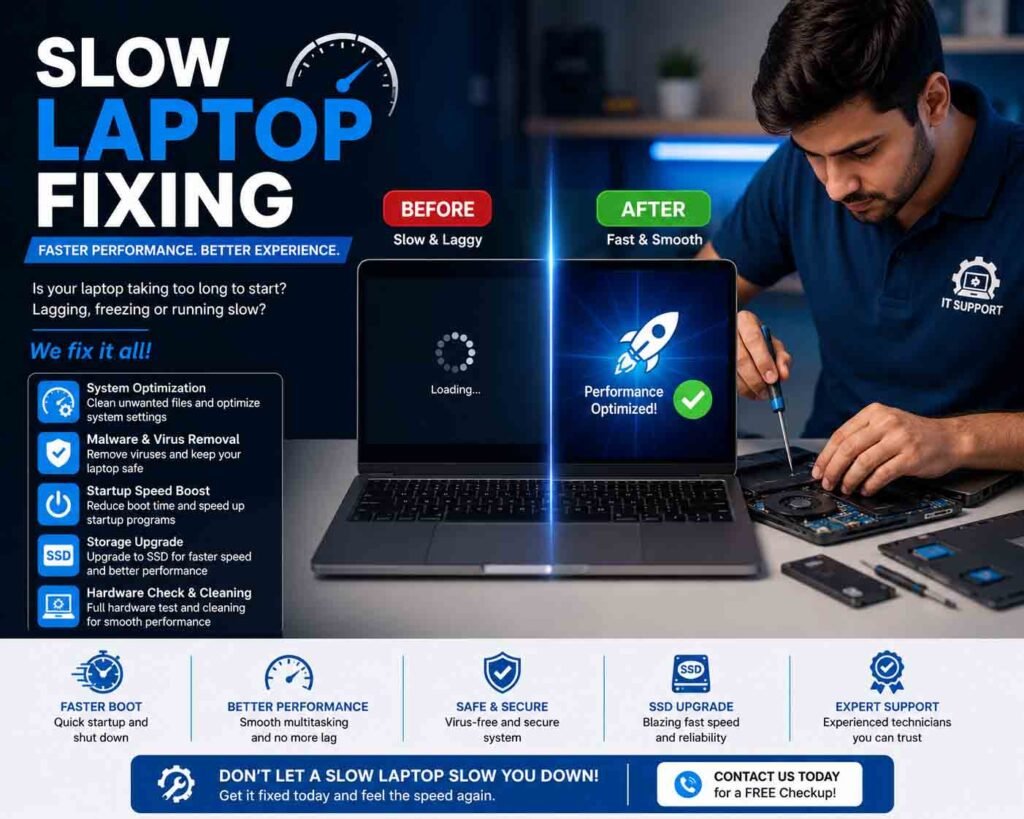
Storage is one of the most useful upgrade areas on many laptops. Replacing an older HDD with an SSD can significantly improve startup times, application loading, and general system responsiveness.
A larger SSD can also provide additional space for documents, applications, photos, and other files.
Before purchasing an SSD, determine whether the laptop supports a 2.5-inch SATA drive, M.2 SATA drive, M.2 NVMe drive, or another storage format.
Storage Migration
If the existing drive contains the operating system and important files, plan the migration before removing it.
Important data should be backed up first. Depending on the situation, the operating system can be freshly installed on the new drive or the existing installation can be transferred using appropriate cloning or migration software.
After installation, verify that the laptop recognizes the new storage device and that important files are accessible.
Battery Replacement
Laptop batteries gradually lose their ability to hold a charge. A replacement may restore useful battery life when the original battery has significantly degraded.
The replacement battery must be compatible with the laptop model and should come from a reliable source.
A swollen or physically damaged battery should not be used. Battery replacement involving a sealed or difficult-to-access design should be handled by a qualified technician.
Cooling and Thermal Maintenance
Although cooling is not always considered a hardware upgrade, improving thermal performance can help an older laptop operate more reliably.
Inspect ventilation openings and fans for dust. If a laptop is overheating, thermal maintenance may be more appropriate than installing faster hardware.
Upgrading components without addressing an existing cooling problem can lead to continued overheating.
Graphics and Processor Upgrades
Unlike desktop computers, most laptops do not provide practical processor or graphics-card upgrades because these components are often soldered directly to the motherboard.
Some specialized laptops may support modular graphics hardware, but compatibility depends entirely on the model.
For many laptops, replacing the entire system is more practical when significantly higher CPU or graphics performance is required.
Check Compatibility Before Buying
Before purchasing any laptop component, verify:
- Exact laptop model
- Supported RAM type and maximum capacity
- Storage interface and physical size
- Maximum supported storage capacity
- Battery compatibility
- Available internal expansion slots
- Manufacturer upgrade limitations
Do not assume that components from one laptop model will work in another model, even if they appear physically similar.
Backup Before an Upgrade
Create a backup of important files before opening the laptop or replacing hardware. Storage upgrades in particular can involve operating-system migration or reinstallation.
Keeping a backup ensures that important documents and personal files remain protected if something goes wrong during the upgrade process.
Testing After Installation
After completing the upgrade, start the laptop and verify that the new component is recognized correctly.
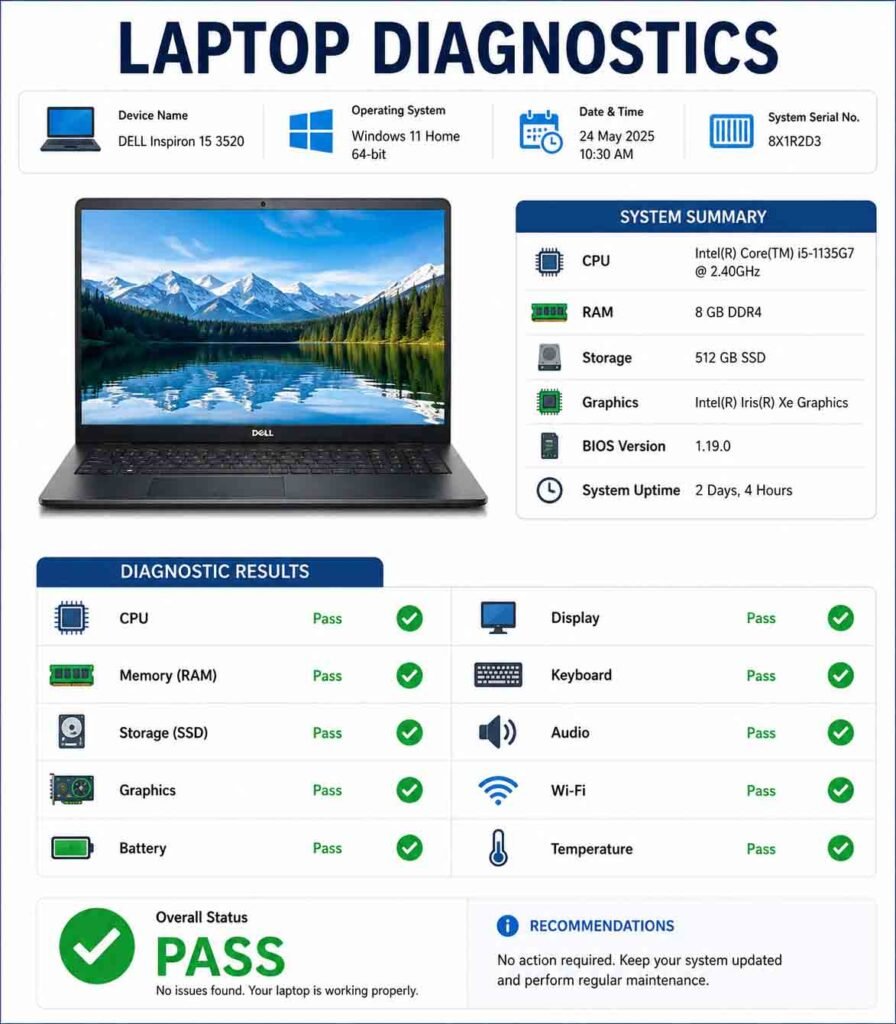
Check system performance, storage capacity, memory availability, battery operation, temperatures, and overall stability. Run appropriate diagnostic tests if necessary.
If the laptop does not start after an upgrade, turn it off and check component seating, connections, and compatibility rather than repeatedly attempting to power it on.
Extending the Life of Your Laptop
A carefully planned laptop hardware upgrade can provide a noticeable improvement without requiring a completely new computer. RAM and SSD upgrades are often the most practical options, while battery replacement can restore mobility to an older device.
The key is to diagnose the laptop first, verify compatibility, back up important data, and choose upgrades that address the actual performance or capacity limitation.







Reviews
There are no reviews yet.