Printer Setup
Printer setup is the process of connecting, configuring, and testing a printer so it can reliably communicate with computers, laptops, mobile devices, or a network. Proper setup helps prevent common problems such as failed print jobs, connection errors, incorrect drivers, and poor print quality.
Preparing for Printer Setup
Before installing the printer, identify the printer model and determine how it will connect to the device. Common connection methods include USB, Wi-Fi, Ethernet, and Bluetooth on supported models.
Check that the printer has:
- A suitable power connection
- Ink or toner
- Correct paper
- Required cables
- A compatible driver or application
- Access to the appropriate Wi-Fi or network
For a network printer, confirm that the intended network is available before beginning configuration.
Connecting the Printer
Place the printer on a stable surface with adequate ventilation and enough space to operate the paper trays and access panels.
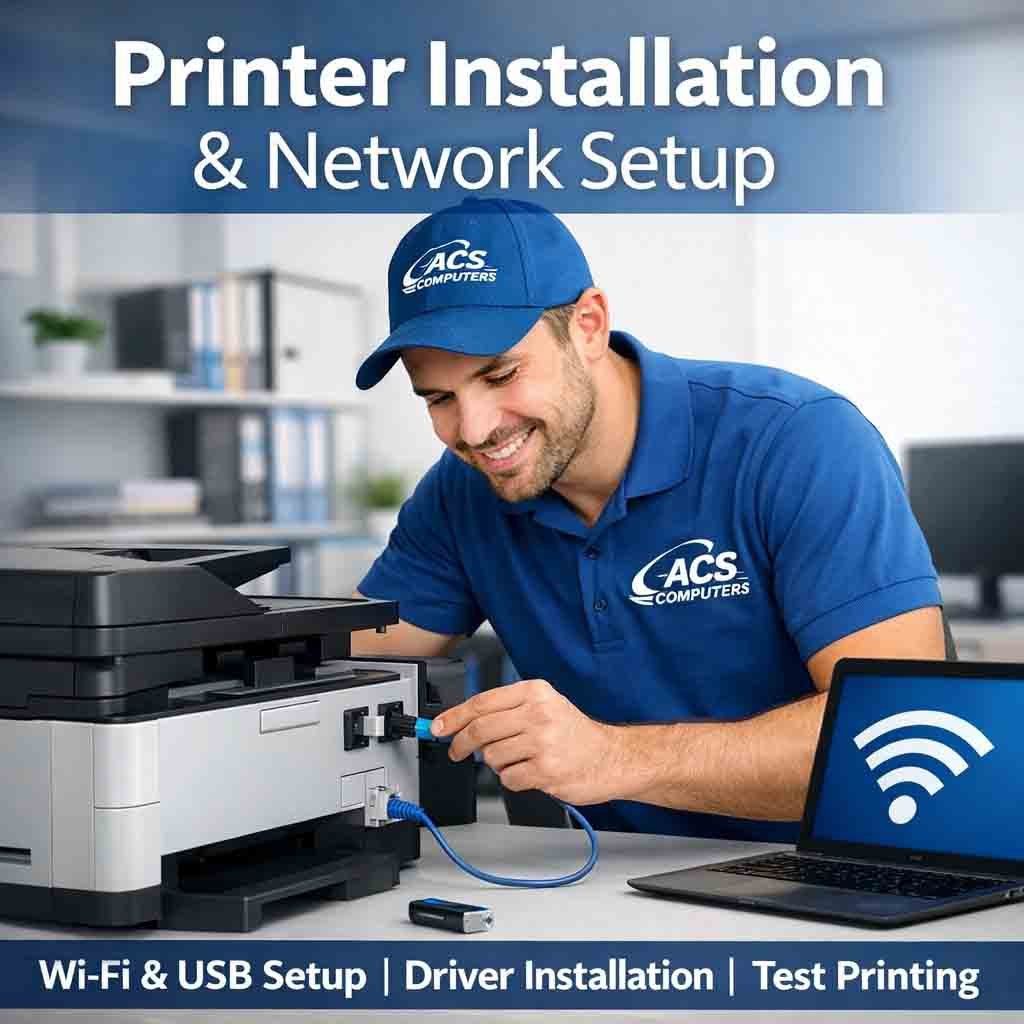
Connect the power supply and turn the printer on. For USB printers, connect the appropriate USB cable to the computer when prompted or after the printer software has been installed.
For Ethernet printers, connect the network cable to the printer and network equipment.
Wireless Printer Setup
For Wi-Fi printers, use the printer’s display, setup utility, or manufacturer application to connect the printer to the correct wireless network.
Make sure the computer or mobile device is connected to the same network when required.
If the printer cannot connect, check the Wi-Fi password, signal strength, network settings, and whether the printer supports the available wireless band or security configuration.
Installing Printer Drivers
A computer may require a suitable printer driver before it can communicate correctly with the device.
Install the driver appropriate for the printer model and operating system. Using the correct software can provide access to features such as duplex printing, scanning, paper-size selection, and print-quality controls.
Avoid installing drivers or utilities from unknown sources.
Setting the Default Printer
After installation, verify that the computer recognizes the printer. If several printers are installed, select the appropriate device as the default printer when necessary.
Print a test page to confirm that the installation is working.
Print Settings
Configure commonly used options such as:
- Paper size
- Paper type
- Print orientation
- Color or black-and-white printing
- Print quality
- Single- or double-sided printing
- Number of copies
Correct settings can help prevent problems such as incorrect page layout, poor print quality, or paper-size errors.
Multifunction Printer Setup
Multifunction devices may provide printing, scanning, copying, and fax functions. Each feature should be tested separately after installation.
For scanning, install the required scanner software and verify that the computer can detect the scanner correctly.
Network Printer Setup
Business and office printers are often connected to a shared network so multiple authorized users can print.
During setup, verify the printer’s network address, connection status, and access permissions. If required, configure the printer on the organization’s print server or management system.
Network settings should be documented so future troubleshooting is easier.
Testing the Printer
After completing the printer setup, perform several basic tests:
- Print a test page.
- Check text and image quality.
- Verify paper feeding.
- Test color printing if applicable.
- Test double-sided printing when supported.
- Test scanning on multifunction devices.
- Confirm that the printer remains connected after restarting the computer.
If a test fails, check the connection, driver, print queue, paper, ink or toner, and printer status.
Troubleshooting Common Setup Problems
A printer may appear installed but still fail to print because of an incorrect driver, offline status, network issue, stalled print queue, or communication problem.
Restarting the printer and computer can resolve temporary issues. If the problem continues, review the exact error message and verify the connection method and installed driver.
Keeping the Printer Ready
Once setup is complete, keep the printer’s software and firmware appropriately updated and perform routine maintenance recommended by the manufacturer.
A properly completed printer setup ensures that the printer is correctly connected, configured, and ready for everyday use while reducing common installation and connectivity problems.






Reviews
There are no reviews yet.