Printer Diagnostics & General Inspection
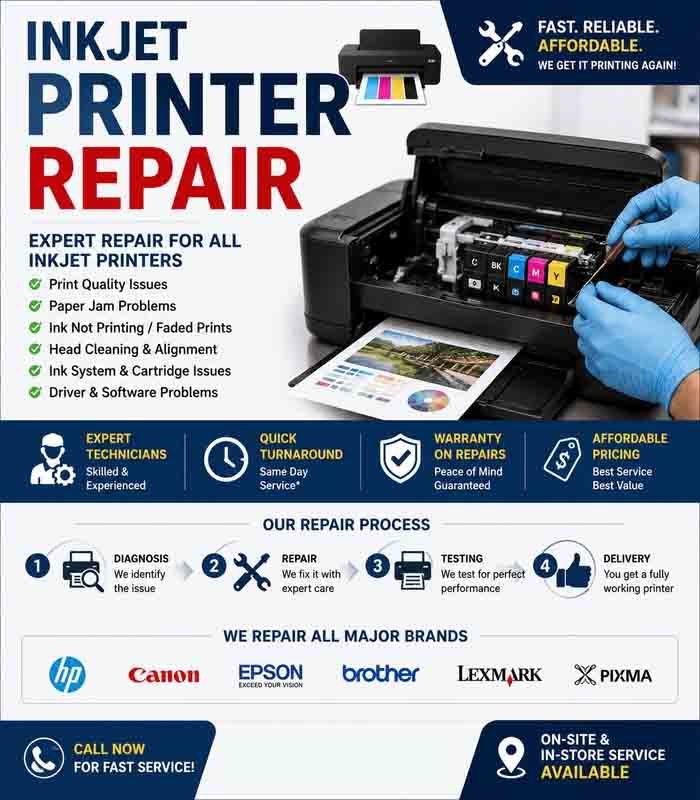
Printer diagnostics and general inspection help identify printing problems, connection failures, poor print quality, paper-feed issues, and hardware faults. A systematic inspection can often resolve simple problems before professional servicing or component replacement becomes necessary.
Basic Printer Diagnostics
Begin by identifying the exact problem. Check whether the printer is completely unresponsive, unable to print, producing poor-quality pages, showing error messages, or experiencing paper-feed problems.
Basic checks include:
- Confirming that the printer is powered on
- Checking power and USB or network connections
- Reviewing the printer’s display for error messages
- Checking paper availability
- Checking ink or toner levels
- Confirming that the correct printer is selected on the computer
- Restarting the printer and computer
- Checking the printer’s online or ready status
If an error code appears, record it before resetting the printer.
Paper and Feeding Inspection
Paper-feed problems are among the most common printer faults. Inspect the paper tray and make sure the paper is loaded correctly and is suitable for the printer.
Check for:
- Paper jams
- Folded or damaged paper
- Incorrect paper size
- Overfilled trays
- Dirty feed rollers
- Multiple sheets feeding at once
Remove jammed paper carefully and avoid pulling forcefully, as torn paper can remain inside the printer and cause additional problems.
Ink and Toner Inspection
Check the ink or toner level when prints are faded, incomplete, or missing certain colors.
Low ink or toner can cause poor output, but print-quality problems may also result from blocked printheads, incorrect print settings, or worn components.
For laser printers, toner cartridges and related imaging components should be inspected according to the manufacturer’s service procedures.
Print Quality Check
Print a test page or diagnostic page to evaluate the printer’s output.
Look for:
- Faded text
- Missing colors
- Horizontal or vertical lines
- Smudges
- Uneven printing
- Incorrect colors
- Repeated marks
- Blurry text
If the printer provides automatic printhead cleaning or alignment tools, these can be used when appropriate.
Connection and Network Inspection
Check how the printer communicates with the computer.
For USB printers, inspect the USB cable and try another compatible port if necessary. For network printers, verify the Wi-Fi or Ethernet connection and confirm that the printer has a valid network connection.
If multiple computers cannot communicate with the printer, the problem may involve the printer’s network configuration rather than an individual computer.
Driver and Software Check
A printer may appear connected but still fail to print because of an incorrect, corrupted, or outdated driver.
Check the installed printer driver and verify that the correct printer is selected as the default when necessary. Also check the print queue for documents that are stuck or generating repeated errors.
Clearing a stalled print queue and restarting the print service can resolve some software-related printing problems.
Physical Inspection
Inspect the printer’s external and accessible internal areas for physical problems. Look for:
- Cracked or damaged components
- Loose trays
- Broken covers or hinges
- Foreign objects
- Excessive dust
- Ink or toner leakage
- Damaged cables
- Unusual noises
Grinding, clicking, or repeated mechanical sounds may indicate a problem with rollers, gears, motors, or other internal components.
Scanner and Multifunction Printer Check
For multifunction printers, inspect the scanner as well as the printing system. Check the scanner glass for dust, fingerprints, or marks that could appear on scanned documents.
Test copying, scanning, printing, and other available functions separately. This helps determine which part of the device is causing the problem.
Final Inspection
After completing the diagnostic checks, record the symptoms, error messages, tests performed, and faults identified. If basic troubleshooting does not resolve the issue, the recorded information can help a technician diagnose the printer more efficiently.
Regular printer diagnostics and general inspection can help maintain reliable printing, identify worn or damaged components early, and reduce unnecessary downtime. Keeping the printer clean, using suitable paper and consumables, and addressing warning messages promptly can also extend its useful service life.








Reviews
There are no reviews yet.