Computer Diagnostics & General Inspection
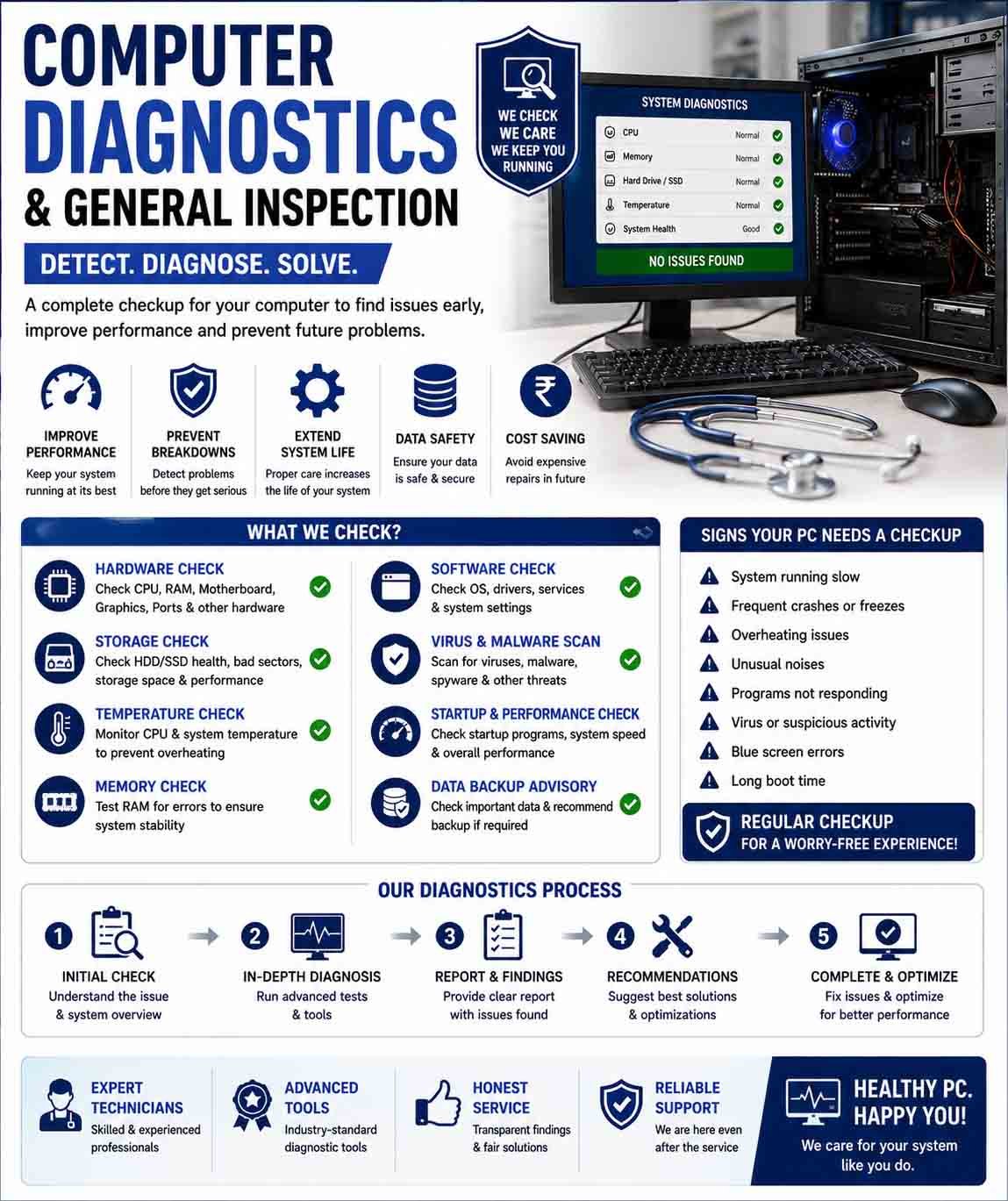
Computer diagnostics and general inspection are essential for identifying problems before they lead to major hardware failure or data loss. A proper inspection examines the computer’s physical condition, hardware components, operating system, performance, security, and connectivity.
Basic Computer Diagnostics
Begin by identifying the symptoms. Check whether the computer is slow, freezing, restarting unexpectedly, displaying error messages, making unusual sounds, or failing to start.
Basic checks should include:
- Checking power connections
- Restarting the computer
- Reviewing error messages
- Checking available storage
- Monitoring CPU and memory usage
- Checking system temperatures
- Confirming that essential devices are detected
- Looking for recent software or driver changes
These simple checks can often reveal the source of a problem without requiring immediate hardware replacement.
Hardware Inspection
A general hardware inspection should cover the main internal and external components.
Processor and Cooling
Check whether the processor is operating normally and whether the cooling fans are functioning. Excessive heat can cause performance reduction, system instability, and unexpected shutdowns.
Inspect ventilation openings for dust and make sure airflow is not obstructed.
RAM
Memory problems can cause freezing, application crashes, blue-screen errors, and random restarts. A memory diagnostic can help identify defective RAM modules.
Storage Drive
Check the health and available capacity of the HDD or SSD. Warning signs include unusually slow performance, corrupted files, clicking noises from mechanical drives, and frequent operating-system errors.
Important data should be backed up if a storage failure is suspected.
Power Supply
For desktop computers, inspect the power supply, power cable, connectors, and signs of overheating or physical damage. Unstable power can cause random shutdowns, restarts, and failure to boot.
Display and Peripheral Inspection
Test the monitor or laptop display for flickering, distorted images, dead pixels, brightness problems, and intermittent signals.
External devices should also be checked, including:
- Keyboard
- Mouse
- USB devices
- Speakers or headphones
- Webcam
- Printer
- External storage
- Network adapters
Testing a suspected device on another compatible computer can help determine whether the device or the computer is responsible for the problem.
Operating System and Software Check
Computer problems are not always caused by faulty hardware. Review recently installed applications, system updates, drivers, and startup programs.
Check whether unnecessary applications are consuming system resources. Also verify that the operating system is receiving appropriate security and software updates.
Unexpected crashes or repeated error messages should be recorded because they may provide useful clues during further diagnosis.
Network and Internet Inspection
Check the computer’s Ethernet or Wi-Fi connection and verify that the network adapter is functioning correctly.
If internet access is intermittent, determine whether the problem affects only one computer or multiple devices. This helps distinguish a computer-related issue from a router, network, or internet-service problem.
Physical Condition
A general inspection should also examine the physical condition of the computer.
Look for:
- Dust accumulation
- Damaged ports
- Loose cables
- Cracked cases
- Broken fans
- Signs of liquid exposure
- Corrosion
- Unusual odors
- Excessive heat
For desktop computers, inspect the internal components only when it is safe to do so and the computer has been properly disconnected from power.
Security Inspection
Basic diagnostics should also consider security. Check for suspicious applications, unexpected browser behavior, unusual network activity, and security warnings.
Make sure appropriate antivirus and system-security protections are active and that important data is backed up.
Final Inspection
After completing the checks, record the problems found and the condition of the major components. Separate confirmed faults from symptoms that require additional testing.
A systematic computer diagnostics and general inspection process makes troubleshooting more accurate and reduces unnecessary replacement of working components. Regular inspections can also identify overheating, storage problems, damaged connections, and performance issues before they develop into serious failures.









Reviews
There are no reviews yet.