Laptop Battery Replacement
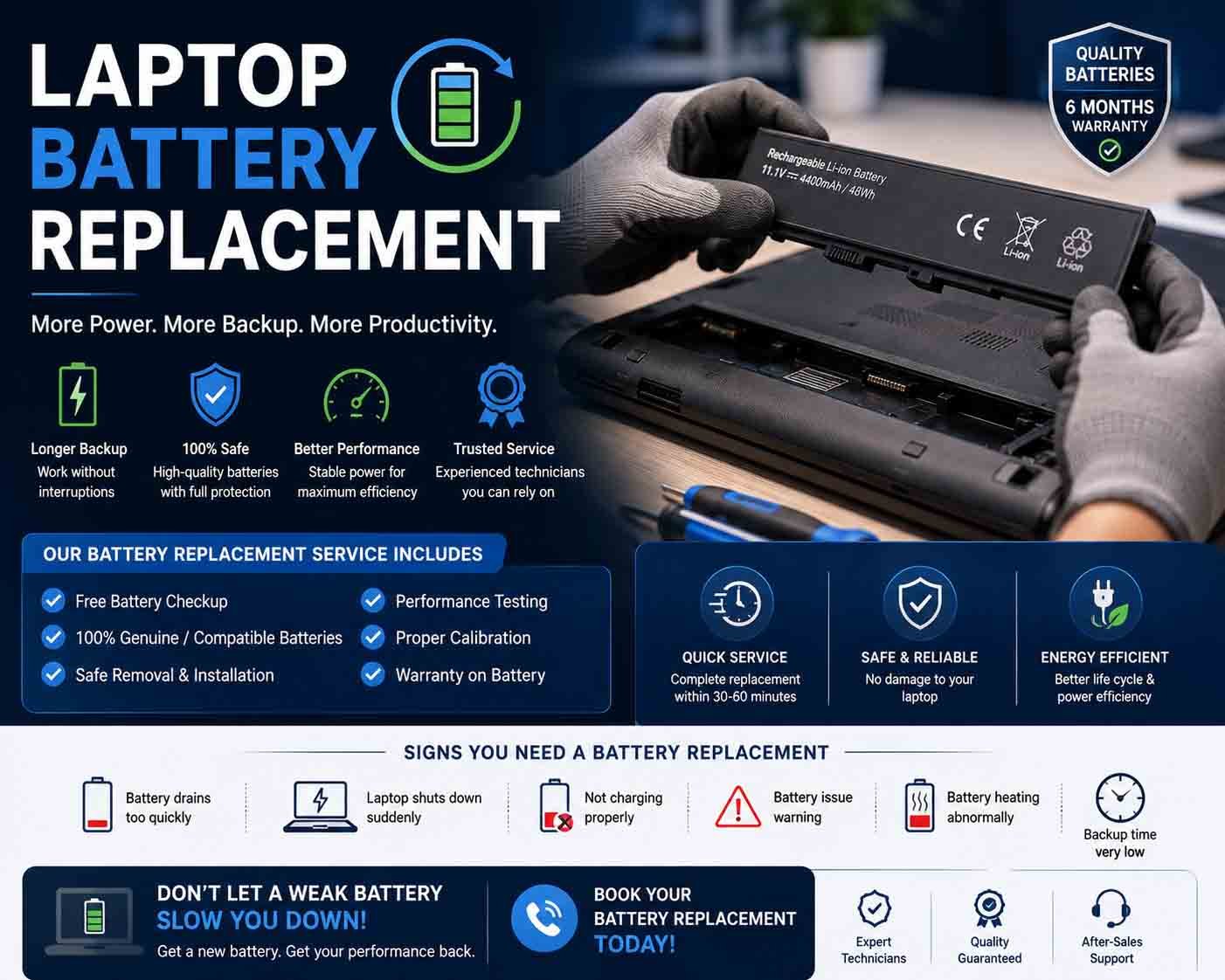
Laptop battery replacement is the process of removing an old or degraded battery and installing a compatible replacement. Over time, rechargeable laptop batteries naturally lose capacity, resulting in shorter usage time, unexpected shutdowns, or a laptop that works reliably only when connected to a charger.
Signs Your Laptop Battery Needs Replacement
A battery may need replacement when you notice:
- Very short battery life
- Laptop shutting down unexpectedly
- Battery percentage dropping quickly
- Battery not charging fully
- Laptop working only with the charger connected
- Battery health showing significant degradation
- Unexpected charging or battery warnings
- Swelling or physical deformation
Battery problems should be diagnosed before replacement because charging-system or motherboard faults can sometimes produce similar symptoms.
Checking Battery Health
Modern operating systems may provide battery-health information that shows charging capacity, battery condition, and usage history.
Compare the battery’s current capacity with its original design capacity. A significant reduction indicates normal battery aging and may explain reduced runtime.
If the laptop reports a battery fault or abnormal charging behavior, further inspection may be required.
Choosing the Correct Replacement Battery
Laptop batteries are model-specific, and compatibility is extremely important.
Before purchasing a replacement, check:
- Exact laptop model
- Battery part number
- Voltage
- Capacity
- Connector type
- Physical dimensions
- Manufacturer specifications
A battery that looks similar may not be electrically or physically compatible.
Removing the Old Battery
The laptop should be completely powered off before battery replacement. External power should be disconnected, and appropriate precautions should be taken when accessing internal components.
Some laptops have easily removable batteries, while newer models may contain internal batteries secured inside the chassis.
Internal battery replacement should be handled carefully to avoid damaging connectors, cables, or the battery itself.
Installing the New Battery
The replacement battery should be positioned correctly and connected securely using the manufacturer’s recommended procedure.
Do not bend, puncture, crush, or apply excessive pressure to a battery. A damaged lithium-ion battery can present a serious safety risk.
Battery Charging Test
After installation, connect the appropriate charger and confirm that the laptop recognizes the battery and begins charging normally.
Check whether the charging indicator behaves correctly and allow the battery to charge according to the manufacturer’s recommendations.
Testing Battery Performance
After charging, disconnect the power adapter and monitor the laptop during normal use.
Check for:
- Stable battery percentage
- Normal discharge rate
- Unexpected shutdowns
- Excessive heating
- Charging interruptions
- Correct battery detection
Battery runtime varies according to screen brightness, applications, processor workload, wireless connectivity, and power-management settings.
Swollen Battery Warning
A swollen battery should be treated as a serious safety issue. Do not press, puncture, bend, or continue using a visibly swollen battery.
If the laptop casing is separating or the battery appears swollen, stop using the device and arrange for professional battery servicing.
Product Highlight
A compatible replacement laptop battery can restore mobility and improve everyday usability when an original battery has significantly degraded. Customers should select a battery that matches the exact laptop model and original battery specifications. A reliable replacement should provide stable charging and appropriate operating capacity. Always purchase from a reputable source and avoid batteries with unclear specifications or questionable quality.
When Professional Replacement Is Recommended
Professional assistance is advisable when the battery is internally mounted, swollen, physically damaged, or difficult to access.
A technician can also determine whether the problem is actually caused by the battery or by the laptop’s charging circuit, adapter, connector, or motherboard.
Extending Battery Life
After installing a new battery, avoid excessive heat and use appropriate charging equipment. Keep the laptop’s ventilation clear and use the manufacturer’s recommended power-management settings.
Regular software and firmware updates can also help maintain proper power management.
A properly performed laptop battery replacement can restore useful battery life and extend the laptop’s practical lifespan. Correct battery identification, safe handling, careful installation, and thorough charging tests are essential for reliable and safe operation.









Reviews
There are no reviews yet.