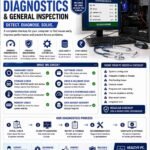
Laptop Diagnostics & General Inspection
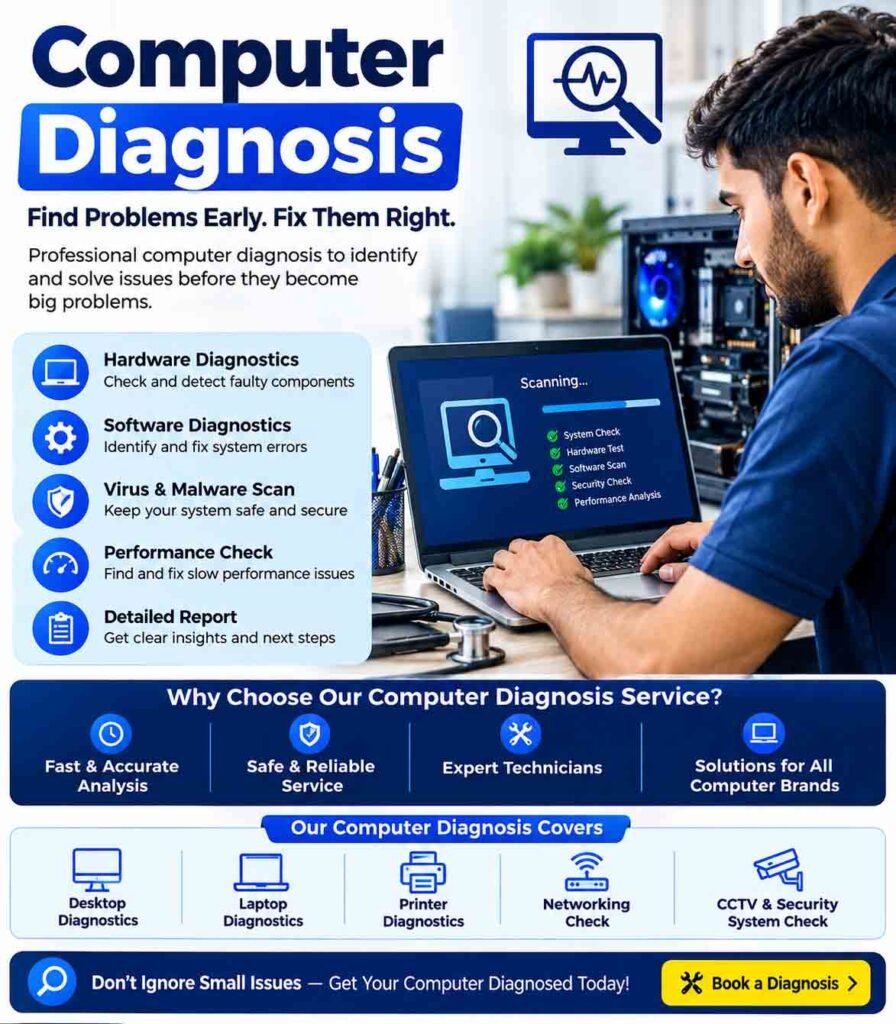
Laptop diagnostics and general inspection help identify hardware, software, power, performance, and connectivity problems before they become more serious. A systematic inspection can also help determine whether a laptop needs a simple adjustment, component replacement, or professional repair.
Basic Laptop Diagnostics
Start by identifying the exact symptoms. Check whether the laptop is slow, freezing, overheating, restarting, failing to boot, or showing error messages.
Basic checks include:
- Checking the charger and power connection
- Restarting the laptop
- Checking available storage
- Monitoring CPU and memory usage
- Looking for system errors
- Checking installed drivers and recent updates
- Confirming that essential hardware is detected
Recording when and how a problem occurs can make diagnosis much easier.
Battery and Charging Inspection
The battery and charging system should be checked carefully. Verify that the laptop recognizes the charger and that the battery is charging normally.
A battery that drains unusually quickly may have reduced capacity. If the laptop shuts down unexpectedly or works only when connected to the charger, the battery, charger, charging port, or internal power circuitry may need further inspection.
A swollen, damaged, excessively hot, or leaking battery should not be used and should be handled by a qualified technician.
Hardware Inspection
A general hardware inspection should cover the major components.
RAM
Faulty or insufficient RAM can cause freezing, crashes, slow performance, and unexpected errors. A memory diagnostic tool can be used to check for potential memory faults.
SSD or HDD
Check the storage drive for available capacity and health indicators. Warning signs of storage problems include very slow operation, corrupted files, startup failures, and frequent system errors.
Important files should be backed up immediately when storage failure is suspected.
Processor and Cooling
Check processor performance and temperature during normal operation. Excessive heat may cause the laptop to slow down, freeze, restart, or shut down.
Inspect ventilation openings and cooling fans for dust or obstruction. Keeping airflow clear is important for maintaining stable temperatures.
Display Inspection
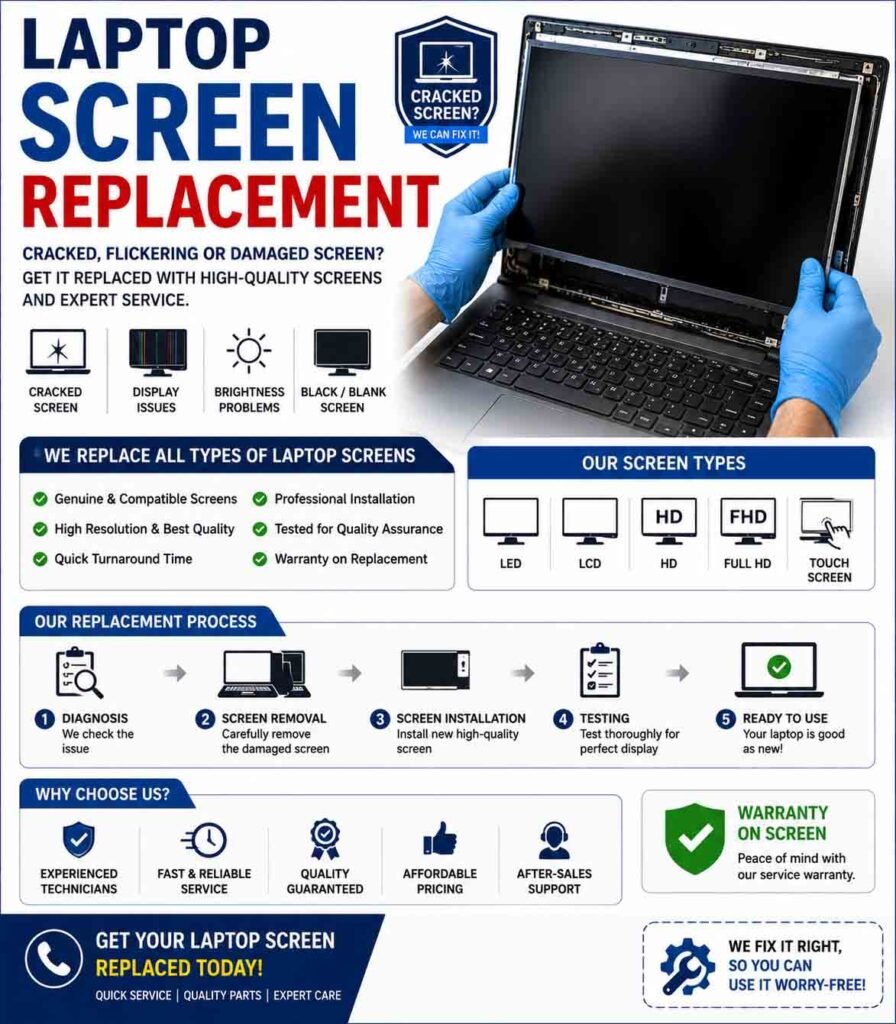
Check the laptop screen for flickering, lines, discoloration, dead pixels, brightness problems, or intermittent display output.
If possible, connecting an external monitor can help determine whether the issue is related to the laptop’s display panel or another component such as the graphics system.
Keyboard, Touchpad, and Ports
Test the keyboard and touchpad for unresponsive keys, intermittent input, or unusual behavior.
Inspect USB ports, audio ports, charging connectors, memory-card slots, and other interfaces. Testing a port with a known-working device can help determine whether the problem is with the laptop or the connected accessory.
Wi-Fi, Bluetooth, and Network
Check whether Wi-Fi and Bluetooth are functioning correctly. Confirm that the laptop can detect available wireless networks and compatible Bluetooth devices.
If the laptop cannot connect while other devices work normally on the same network, investigate the laptop’s wireless adapter, drivers, and network configuration.
Software and Operating System Check
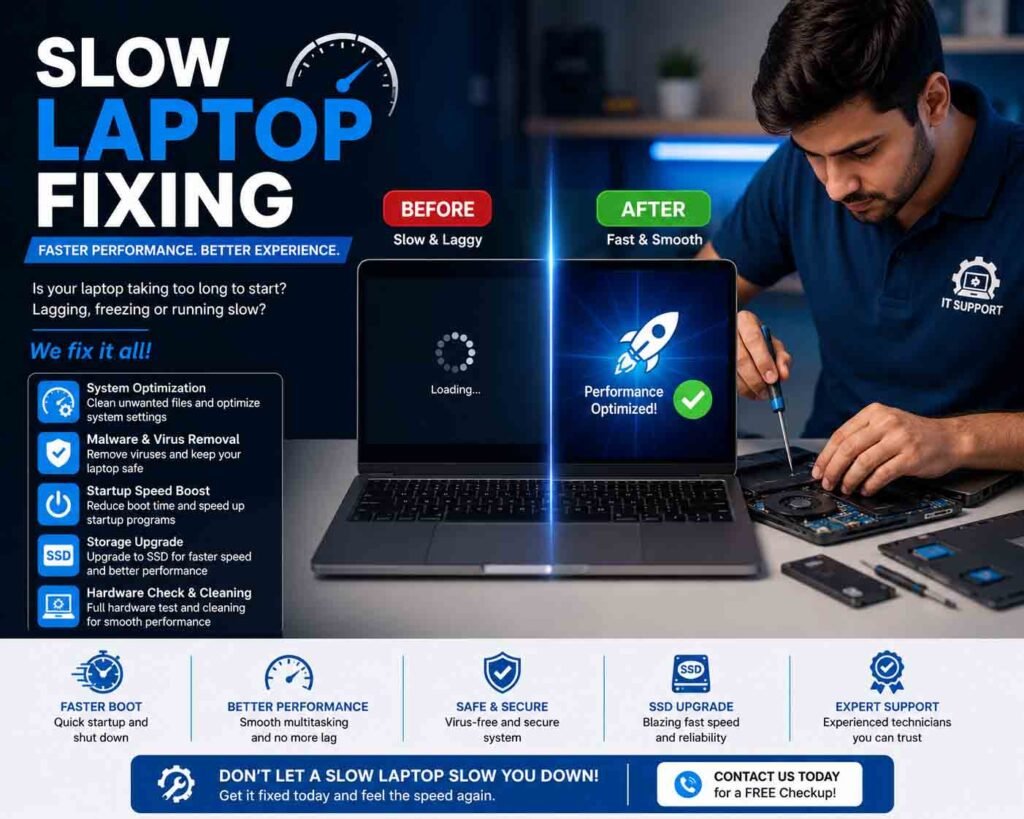
Review recently installed applications, updates, and drivers. Unnecessary startup applications can contribute to slow boot times and poor performance.
Check for repeated system errors, application crashes, and unusual background activity. Security software should also be active and up to date.
Physical Inspection
The exterior of the laptop should be examined for signs of damage. Check for:
- Cracked or loose casing
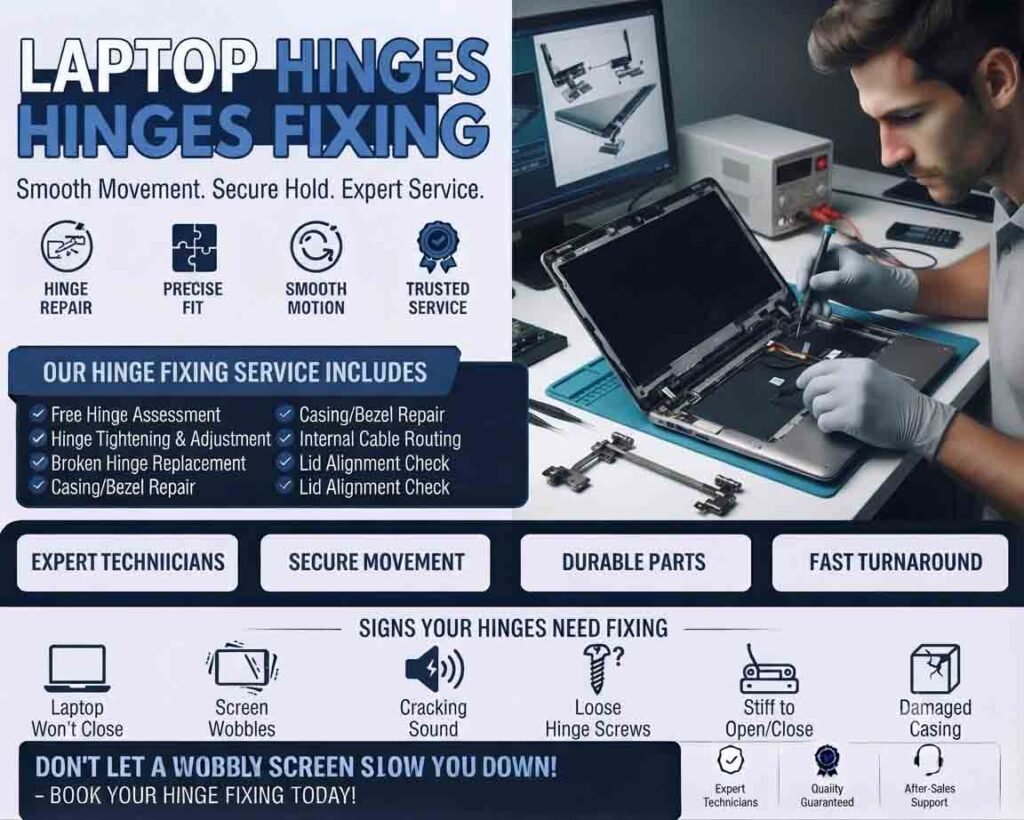
- Damaged hinges
- Loose charging ports
- Broken keys
- Dust accumulation
- Damaged screens
- Signs of liquid exposure
- Unusual odors or excessive heat
Physical damage can sometimes affect internal connections even when the laptop initially appears to operate normally.
Final Diagnostic Review
After completing the inspection, document the symptoms, tests performed, and problems identified. Separate confirmed faults from issues that require additional testing.
Regular laptop diagnostics and general inspection can help detect battery deterioration, overheating, storage problems, memory faults, damaged ports, and software issues early. A methodical approach reduces unnecessary component replacement and helps keep the laptop reliable and safe to use.






Reviews
There are no reviews yet.